

Key Takeaways
- The market size of Managed Security Services is around $38 billion in 2025 and is expected to reach $69 billion by 2030 with a CAGR of 12.54%. (Mordor Intelligence)
- The financial industry usually has advanced security practices, which involve managed services. This results in a faster average identification time of 168 days, with containment taking an additional 51 days. (IBM)
Introduction
Google Chrome is used by millions of internet users, but some still experience network issues. One common reason for these connection issues is incorrect firewall or security settings. For Chrome to function correctly, it is crucial to ensure that it has a proper internet connection. Whether you are working, studying, or browsing casually, knowing how to allow Chrome through your firewall can save significant troubleshooting time. To mitigate potential risks from the internet, make sure your firewall and antivirus software are installed on all devices to minimize attacks.
Sometimes, their basic configurations can prevent such real applications as Chrome from accessing the internet. These issues often appear after software updates, rule changes, or new security tools being installed.
Why Network Access in Chrome Is Important
To make the most of Chrome's features, it's important to connect to the internet easily, as this allows you to use many apps and tools. Setting up Chrome's network security correctly not only makes browsing easier but also protects your private information online. Chrome requires explicit firewall permissions to establish secure outbound and inbound connections. so adjusting the firewall settings for Chrome is very important.
To fix these network problems, users should check and change their firewall or antivirus settings to make sure Chrome is allowed to join the network. This process usually includes finding Chrome in the program list of the security tool and marking it as a safe or allowed program. Also, keeping your security software and Chrome updated can prevent problems and improve speed.
By adjusting these settings, you can browse without interruptions while maintaining strong security, balancing ease of use and safety.
Getting the error message "Allow Chrome to Access the Network in Your Firewall or Antivirus Settings"? Here's the reason why.
Have you seen the warning message, “Allow Chrome to access the network in your firewall or antivirus settings,” when trying to open a webpage in Chrome?
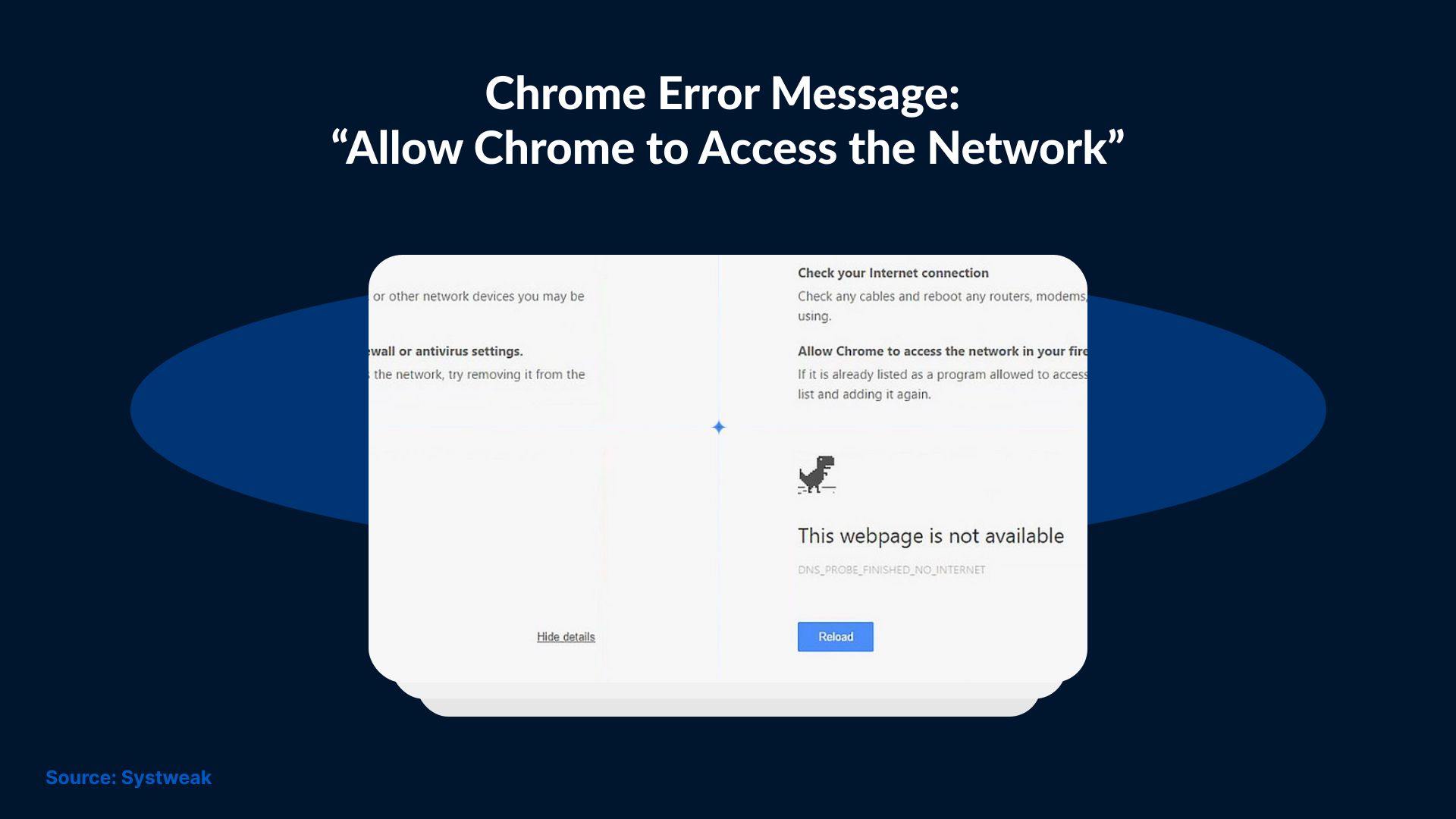
This typically indicates that your firewall or antivirus has blocked Chrome’s network request due to policy restrictions or a suspected threat.
This post will help you fix this error and explain how to allow Chrome in your firewall and antivirus settings. Do not allow unrestricted access for Chrome until you verify that it is not compromised. Before giving Chrome full access through your firewall or antivirus, it's important to find out why it's being stopped in the first place. A blocked connection can indicate potential malware activity or a suspicious browser extension. It's important to make sure your computer is secure before changing any settings.
Check for Malware in Chrome
Chrome no longer has its built-in Cleanup tool, which used to find and remove malware from the browser. So, you will need to use reliable protection add-ons from other companies. Find a security extension that can check your computer for infections and run a complete scan to find any possible threats.
How to Let Chrome Use the Network in Your Firewall or Antivirus Settings
Google Chrome is a popular web browser created by Google. It is well-liked for its speed, security, and many add-ons that help improve work and browsing. Sometimes, problems with your firewall or security settings can slow down Chrome. This piece will help you set up your firewall or antivirus settings so that Chrome can access the internet without any problems, while keeping your network secure.
Why should you let Chrome use the Network in your Firewall?
Firewalls are important for keeping your system safe from unauthorized entry and online threats. However, if they are set up incorrectly, they can accidentally prevent real programs like Chrome from working.
By setting your Chrome permissions properly, you can browse the web smoothly, work without interruptions, and enjoy pleasure without problems. Updating your router keeps Chrome safe while allowing it to work properly.
How Chrome Works with Firewall Settings
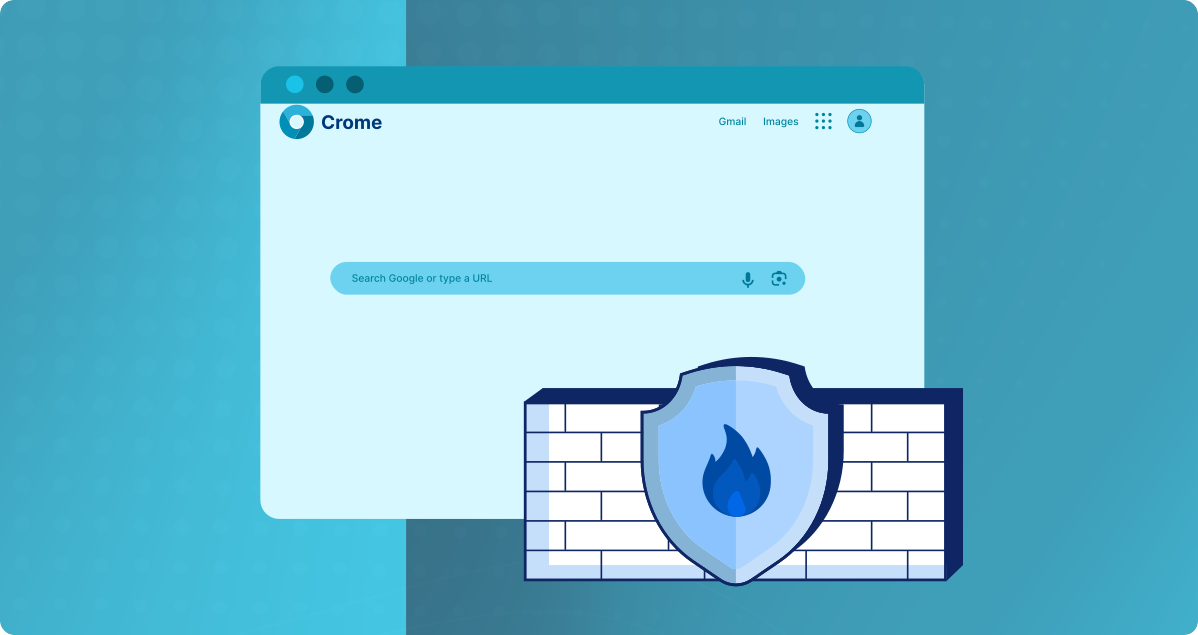
Firewalls watch and manage the data coming in and out of your device and the internet, providing an important layer of security for your network. Chrome has security tools like sandboxing and automatic updates to help protect your browsing. Adjusting these settings helps keep your protection strong while making sure Chrome works properly.
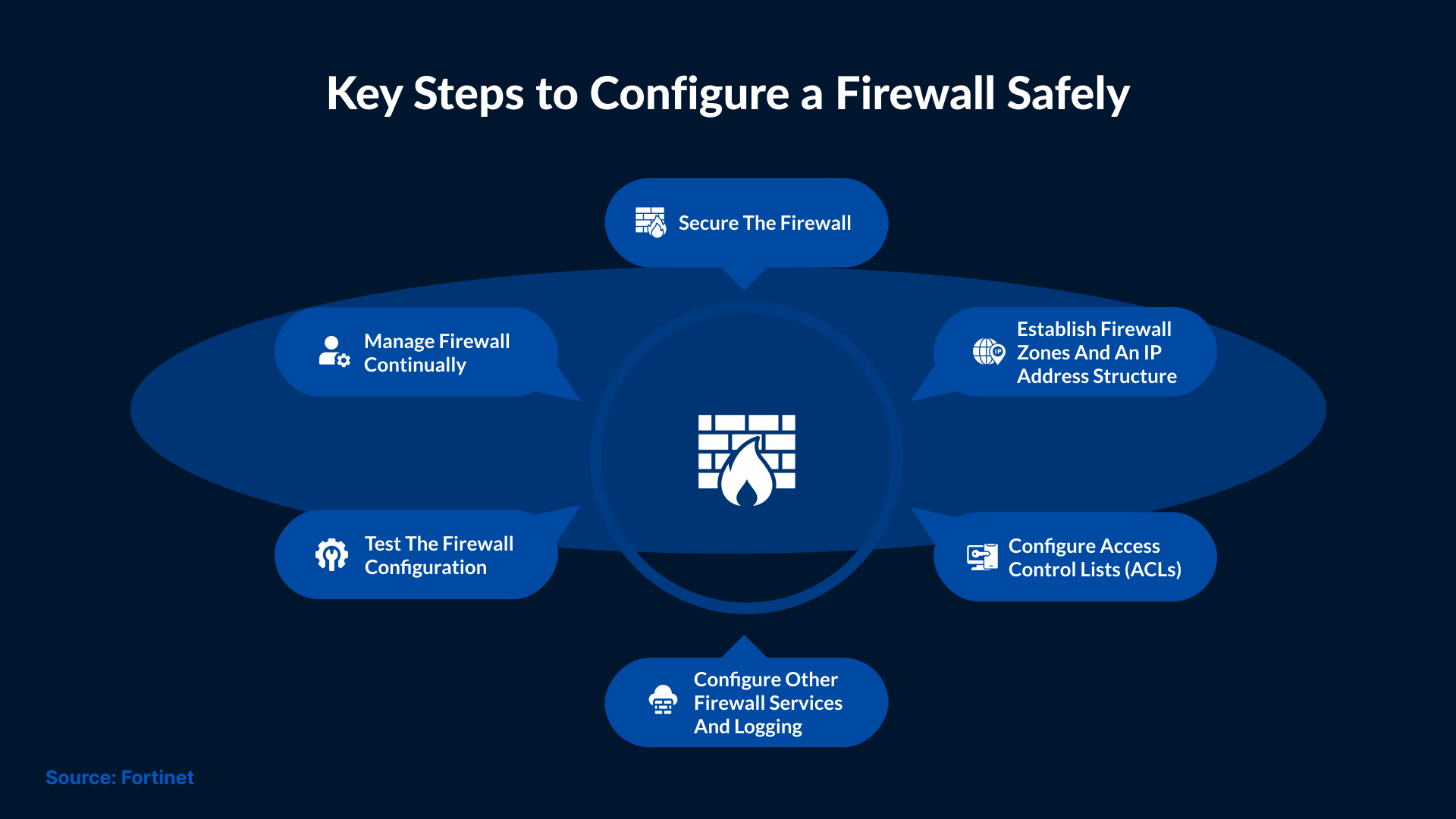
How to Set Up Chrome Access on Your Firewall
1. Find out what firewall software you are using
- First, check which firewall software is installed on your computer. Some typical choices are Windows Defender Firewall, which comes with Windows and provides basic defense that you can adjust.
- Norton Security: A program that includes a firewall and antivirus protection. McAfee Total Protection: A complete answer for your security and firewall needs.
- Third-party firewalls: Applications like ZoneAlarm or Comodo Firewall offer advanced settings.
2. Go to Firewall Settings
After identifying the issue, go to the firewall settings to adjust program permissions. For instance:
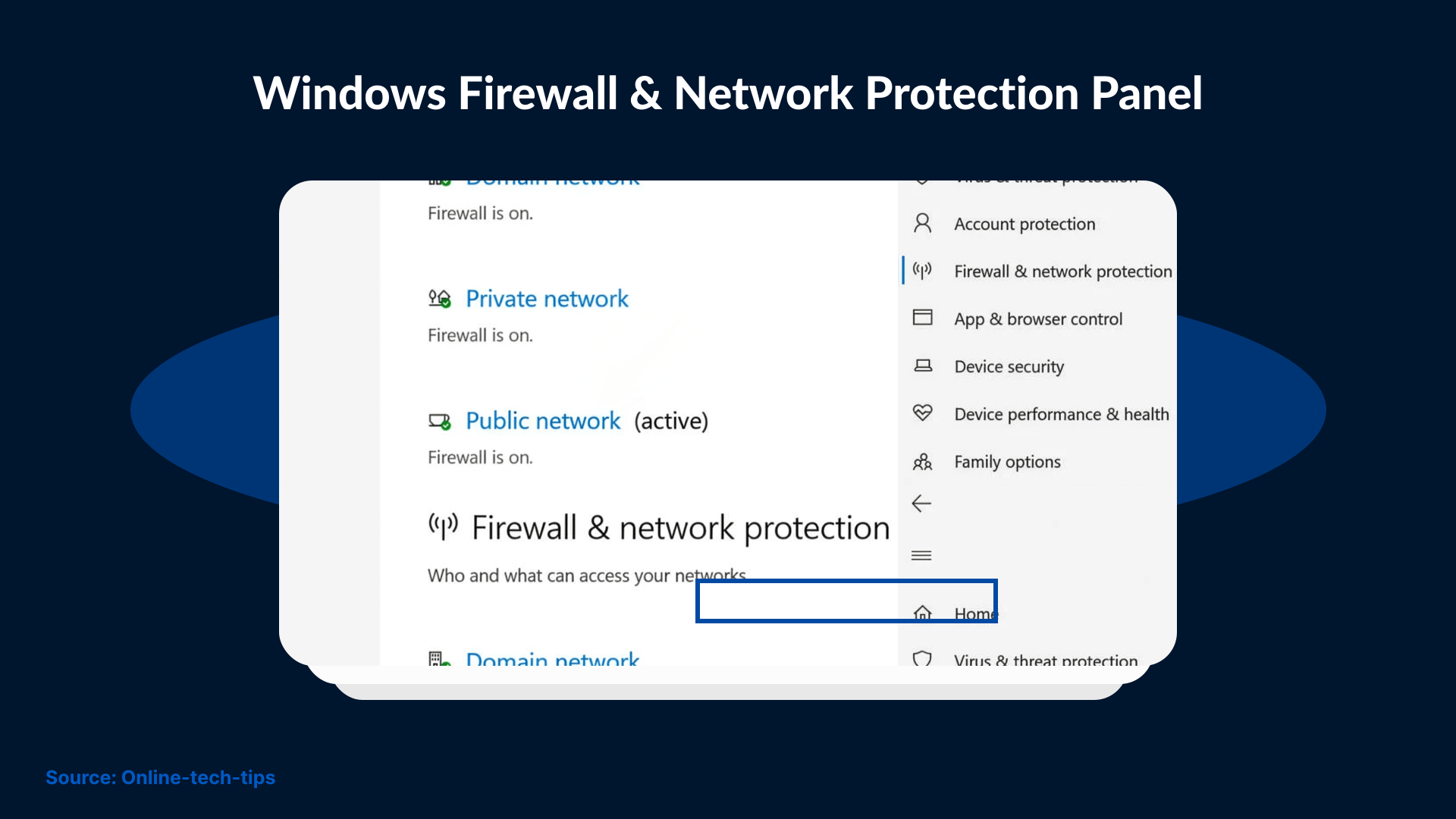
- For Windows Defender Firewall, open the Control Panel, then go to System and Security, select Windows Defender Firewall, and click on Advanced Settings.
- For the macOS Firewall, go to System Preferences, then click on Security & Privacy, and select the Firewall item.
3. Make a New Rule for Chrome
Allow the Chrome program permission to join the network:
- Search for Chrome.exe on your computer and create a rule allowing traffic.
- Make sure Chrome is allowed to accept new connections under the Firewall settings by visiting the MacOS Firewall options.
- For third-party firewalls, navigate to the application rules section and allow Chrome to network. Configure your firewall so Chrome can connect to the internet while still enforcing security safeguards on your system.
Balanced Access and Security
- Check the logs and make sure that Chrome is able to connect to the internet while remaining protected by its firewall.
- Update the firewall and your Chrome browser regularly in order to avoid being put at risk by new malware.
- Provide only the necessary permissions instead of full access to minimize risk.
- Keep a watch regularly on firewall logs. Be aware of what is happening and whether there is any unusual activity.
- By following these steps, you will improve your browsing experience and keep your online protection strong. Setting up Chrome's network security correctly keeps your machine safe and helps Chrome work well.
- To allow Chrome to access the internet on macOS, open System Settings -> Network -> Firewall. Select Firewall Options, unlock the panel, click the + icon, and add Google Chrome to the allowed applications list.
- Choose Firewall Options or Advanced. Press the “+” button to add a new app. Select Google Chrome from the list and click Add.
- Ensure that Chrome is given consent to accept any new connections.
Setting Up Firewalls from Other Companies
- First, run the firewall software and proceed to the area for application rules.
- Create a new rule for Chrome, which can usually be found in program control or application settings.
- Give Chrome permission to access the internet by allowing it to use the internet and the firewall to function well at the same time.
Setting Up Inbound and Outbound Permissions
Once you create a rule for Chrome, you need to readjust the rights for incoming and outgoing data so that Chrome can send and receive information.
Incoming Permissions
Inbound permissions manage the information that comes into your system from the network. In Windows Defender Firewall, go to Inbound Rules and make a new rule to allow links for the Chrome program.
Check the macOS Firewall
- Chrome can accept incoming links in the Firewall Options.
- In third-party firewalls, open the application control or program rules section and allow inbound and outbound traffic for Chrome. Inbound rules allow Chrome to receive network responses. Outbound rules allow Chrome to initiate connections to websites and services.
- In Windows Defender Firewall, go to Outbound Rules and make a new rule for the Chrome program. macOS Firewall usually allows outgoing links, but you can check this in the Firewall Options.
- Firewalls belonging to a 3rd party: One workaround is to adjust the settings to allow Chrome to go out so that it can interact with it without any issues.
Securing Your Internet Browser, Chrome
Chrome must be allowed to connect to the internet, but it must also be ensured that it is secured. Below are some useful hints and tips to assist you with this:
- Keep Moving: Keep Chrome and your firewall definitions updated, since security patches help block new threats that try to exploit browser vulnerabilities.
- Look at the log files: Keep checking the firewall logs for any suspicious activities and report any approaching threats immediately before they break into your system.
- Firewall: One example of a successful trick is using two-factor authentication with a firewall for your system.
- Leveraged Attacks: Chrome should operate under the principle of least privilege. Only the required ports and permissions should be enabled in the firewall to reduce exposure to attacks.
Benefits of Good Firewall Access Settings on the Router
Correctly configuring your router and firewall gives you uninterrupted access to Chrome. It also reduces connection issues that appear when traffic is blocked by mistake.
Connection Stability: When your connection is stable, Chrome loads all pages and services without interruption. This prevents issues such as cut-off sessions or dropped requests.
Fewer Connection Issues: By having correct firewall access settings, you can reduce accidental blocks that cause timeouts and DNS errors. Even SSL failures can be reduced with correct firewall access settings.
Better Performance: A firewall will not directly impact the internet speed, but adding incorrect rules or doing heavy inspection can slow page loading. Fixing these issues allows Chrome to open websites smoothly.
Increased Security: Clear firewall rules stop unknown traffic from reaching your device while still allowing Chrome to work normally. Antivirus tools add another layer of protection against malware and suspicious activity.
Using these settings gives you a safer and smoother browsing experience without making your device harder to use.
Conclusion
Modifying your security or antivirus settings so that Chrome can connect may be necessary to fix Chrome network issues. Take just a few steps, and your browsing will be effortless and your device protected. Updating your security and Chrome programs will help solve most of the issues. Understanding your security settings helps you troubleshoot issues quickly and maintain a secure browsing environment. If the issue continues even after adjusting firewall settings, consult an IT professional or use advanced diagnostic tools to identify network conflicts. With the correct configuration, Chrome can operate securely and efficiently. SafeAeon helps strengthen your cybersecurity posture and ensures safer browsing experiences.