

Key Takeaways
- In the first half of 2025, 11 new mobile malware strains were discovered, including banking trojans, RATs, spyware, and infostealers. (Recordedfuture)
- Trojans account for 39.56% of total detected threats on mobile devices, the highest among all malware types. (Securelist)
- A 40% QoQ increase has been observed in evasive and advanced malware. (Watchguard)
Introduction
Viruses and malware remain two of the biggest cyber threats today. Despite understanding which websites and links to avoid, people still let various forms of malware sneak into their systems, causing issues like corrupt files, inaccessible sectors on hard drives, or complete system failures. Of all the malware types, the Trojan Horse is regarded as the most notorious. We will go into the details of this and discuss steps for effective Trojan virus removal from different operating systems.
What Is a Trojan and How Does It Differ from a Virus?
Searching for Trojans on the internet will bring you results where Trojans are called a type of virus. But that’s not correct, technically. Trojans and computer viruses are types of malware, but they are different from each other.
Viruses can self-replicate, but Trojans can’t. A virus spreads to other devices by creating copies of itself and attaching them to infected software, files, and folders on the system. On the other hand, a Trojan infects a device and remains there until the user copies or downloads the malicious program on a different computer. Because of this difference, Trojan virus removal requires manual inspection or specialized malware tools instead of standard antivirus scans.
Common Types of Trojan Malware
Trojans come in various forms, some more dangerous than others. According to Spacelift, Trojan represents 58% of all malware attacks. Here are the most common types of trojans found on infected devices:
1. Remote Access Trojans (RAT): Give bad actors control of the device for remote access and perform criminal activities.
2. Rootkit Trojans: Hide other malicious programs in the system from being discovered.
3. Ransomware Trojans: Lock system files and data until ransom is paid.
4. Backdoor Trojans: Create vulnerabilities in the system for greater damage.
5. Infostealer Trojans: Steal sensitive data such as passwords or banking details.
6. Destructive Trojans: Cause significant damage to the host.
7. Downloader Trojans: Pull more malware onto your already infected system.
8. DDoS Attack: Trojans launch DDoS attacks on the network.
9. Fraudulent Antivirus: Trojans manipulate users into downloading fake antivirus software.
You need to act fast if you find your system infected with any of these Trojan types. You can’t delay the Trojan virus removal process, as waiting too long can increase the risk of data loss.
How Trojans Infect Your System
Trojans can sneak into devices in multiple ways. This makes Trojan virus removal a bit tricky as these threats hide behind legitimate software or files. Here are the most common ways Trojans infect devices:
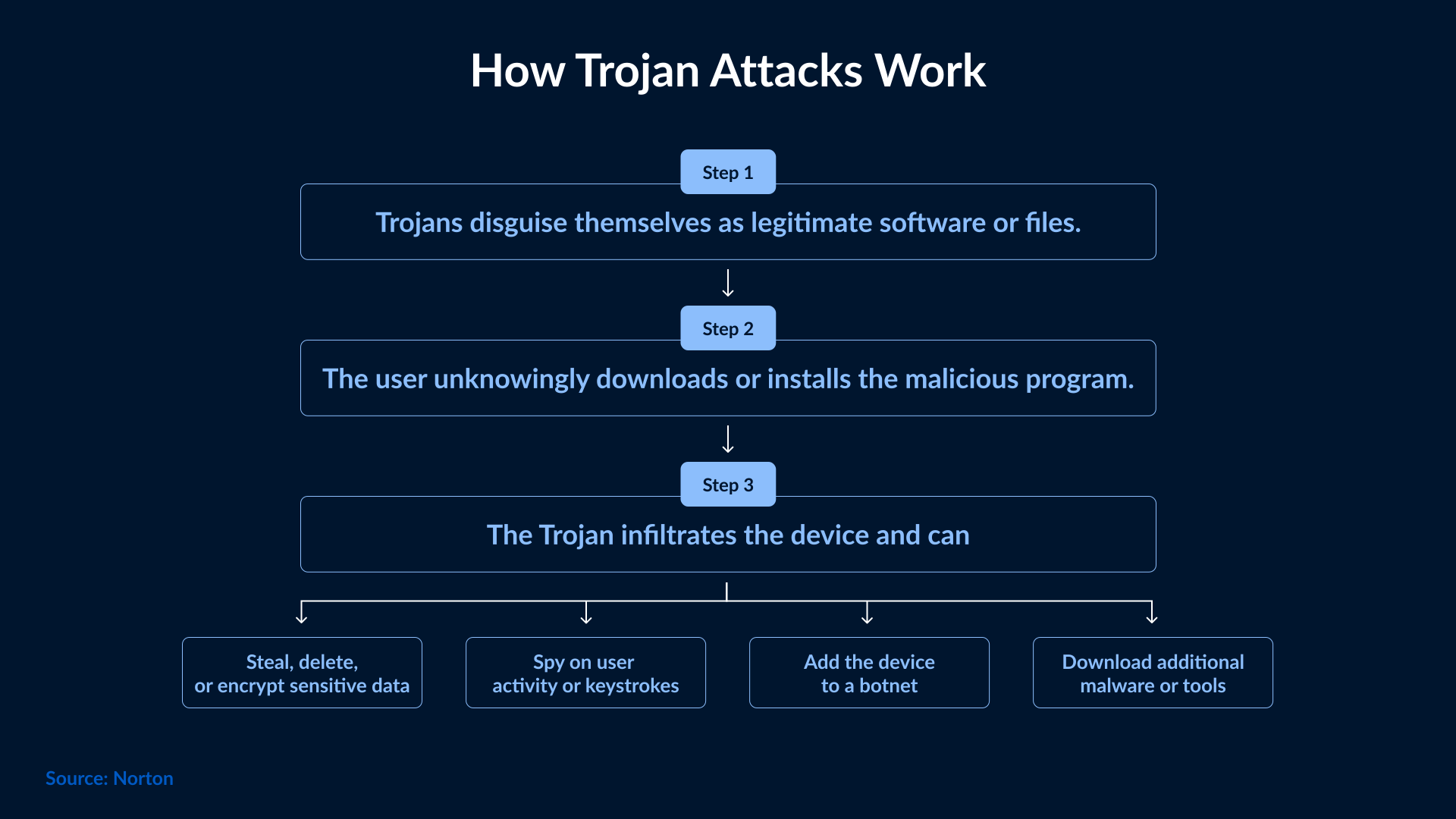
Downloading Infected Software or Apps: Cybercriminals disguise Trojans as legitimate software or apps. Users unknowing install those infected programs or apps, letting Trojans inside their systems.
Accessing Unknown Links or Attachments: Phishing emails are packed with Trojan infections. There are links or files attached to these emails, which, if clicked or opened, can place a Trojan on the user’s device.
Visiting Unsafe Websites or Clicking on Ads: Even websites can be infected with Trojans. Visiting such websites will give Trojans an entry to your device. Sometimes, malicious ads on legitimate sites can also deliver Trojans when clicked.
Using Infected Hard Drives or USB Drives: Trojans can also spread through physical media such as USB drives. When you connect an infected device to your computer, the Trojan also transfers and installs itself.
Exploiting Operating System or Software Vulnerabilities: Outdated OS and software with unpatched vulnerabilities can be susceptible to Trojans. Cybercriminals exploit these weaknesses to gain access to the system and install malicious programs.
Understanding these methods helps you improve your Trojan virus protection.
Warning Signs of a Trojan Infection
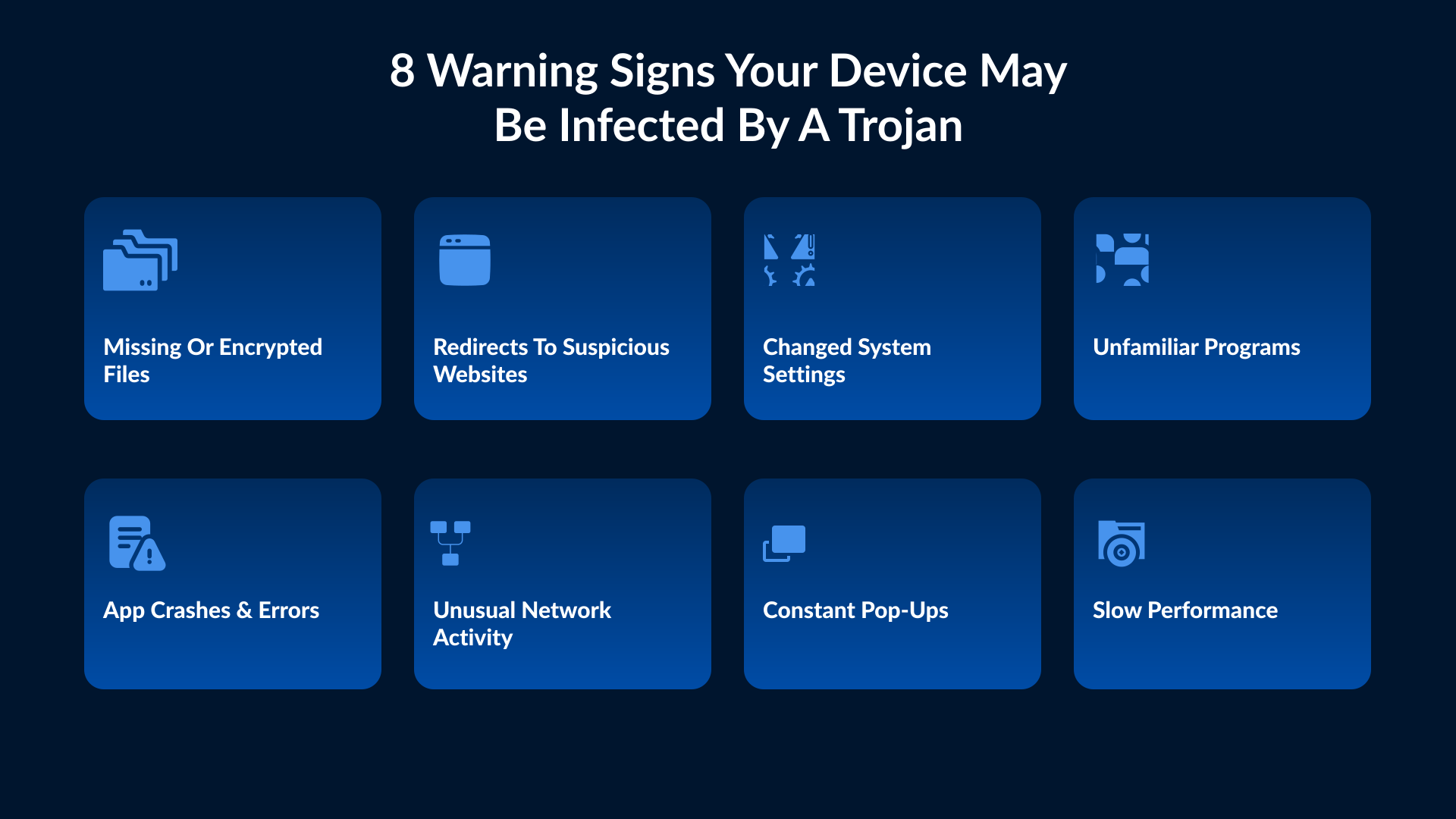
The ability of Trojan horses to disguise themselves makes them difficult to spot. The most suitable approach would be to conduct a full system scan using a reputable antivirus software, especially when you notice the following warning signs:
1. Missing or newly encrypted files: Some of the system’s files may go missing or be replaced with files you can’t open.
2. Redirects to malicious websites: Web browser redirects you to unfamiliar or suspicious websites when you try to open legitimate pages.
3. System settings changes: You might observe changes to your desktop background, default search engine, browser homepage, or other system settings that you didn’t change.
4. Unfamiliar icons in your taskbar: Presence of unfamiliar icons in the system tray or taskbar.
5. Application glitches: Applications don’t run smoothly, crash frequently, or display unusual error messages.
6. Pop-up ads: A sudden increase in intrusive and persistent pop-up ads, even when you aren’t surfing the internet.
7. Slow data: Internet speed is slow, or excessive network activity even when you are not using the internet.
8. Poor computer performance: Your computer runs slower than usual, system freezes unexpectedly, and applications take time to load.
Once the infection is confirmed, you must immediately begin Trojan virus removal process to prevent further damage to your system.
Step-by-Step Guide to Remove a Trojan Virus
So, a Trojan has made its way into your system despite your precautions. Now the focus should be on Trojan virus removal from your device and recovering data safely.
How to remove Trojan virus disguised as Programs
Windows PC:
- 1. Open Settings -> Apps -> Installed apps (or Apps & features on older builds).
- 2. Find the suspicious program in the list, select it, then click Uninstall.
- 3. Empty the Recycle Bin and then run a full antivirus/anti-malware scan to remove leftover files. If Windows Defender detects threats, allow it to quarantine or remove them automatically.
Mac OS:
- 1. Open Finder -> Applications (Cmd+Shift+A).
- 2. Drag the suspicious app to the Trash or select File -> Move to Trash and enter your admin password.
- 3. Important: Some macOS malware installs helper tools or launch agents. After removing the app, check System Settings → General → Login Items and look in /Library/LaunchAgents, /Library/LaunchDaemons, and ~/Library/LaunchAgents for related items. Remove matching entries and then run a reputable Mac anti-malware scan (e.g., Malwarebytes for Mac).
Android:
- 1. Open Settings -> Apps & notifications -> See all apps.
- 2. Tap the suspicious app, then choose Uninstall.
- 3. If Uninstall is blocked, reboot the device into Safe Mode (press and hold Power -> long-press Power off -> Reboot to safe mode) and remove the app there.
- 4. After removal, run Play Protect or scan with a trusted mobile security app and disable ‘Install unknown apps’ in Settings
How to remove Trojan virus disguised as Startup Programs
Windows:
Open Task Manager → Startup tab and disable suspicious startup entries. If you must check the registry, exercise extreme caution and back up the registry first. Common startup registry keys are:
- · HKEY_CURRENT_USER\Software\Microsoft\Windows\CurrentVersion\Run
- · HKEY_LOCAL_MACHINE\Software\Microsoft\Windows\CurrentVersion\Run
For advanced users, Microsoft’s Autoruns (Sysinternals) tool offers a detailed view of hidden startup items.
Mac:
- 1. Click the Apple logo on the Mac menu bar.
- 2. Select System Settings, then go to Users & Groups.
- 3. From the list you see, choose your ID.
- 4. Select login items for a list of programs that run on startup.
- 5. In System Settings -> Users & Groups -> Login Items, select the suspicious login item and click the minus (–) button to remove it. (The Hide checkbox only hides the app window on startup and does not stop it from running.)
How to remove Trojans with Malicious Background Processes
Windows:
- 1. Open Task Manager (Ctrl+Shift+Esc) and locate the suspicious process.
- 2. Verify the process (search the process name online or check its file location) because terminating essential system processes can crash Windows.
- 3. If confirmed malicious, right-click -> Open file location, note the parent program, then End task. If the process restarts automatically, boot into Safe Mode and repeat the steps.
- 4. Uninstall or remove the parent application and run a full malware scan to remove related files.
- 5. Reboot and perform another scan to ensure the process does not restart.
Mac:
- 1. Open Activity Monitor (Cmd+Space → type Activity Monitor).
- 2. Select the suspicious process and click the X (Quit Process) button; choose Force Quit if it won’t end.
- 3. Then locate and uninstall the parent application. Some processes may reappear. If so, check Login Items and ~/Library/LaunchAgents, /Library/LaunchDaemons for related launch entries and remove them, then reboot and re-scan with Mac Anti-Malware.
Recovering and Protecting Your System After a Trojan Virus Attack
Here’s how you can properly implement UTM in your organization:Trojan virus removal from the system is a huge task, but protecting your system afterwards is equally important. Here are some post-removal actions that you must take to prevent reinfection:
1. Disconnect from the internet: Make sure you disconnect from the internet to prevent the Trojan from communicating with its creators and spreading further.
2. Run a full scan with an Antivirus: Use a reliable antivirus to scan your computer. If there are any traces of a Trojan and its associated malicious files, they’ll be found in the scan, and then you can delete or quarantine the infected files.
3. Delete suspicious files or programs: Identify and delete files and/or programs linked to the Trojan. Be very careful during this process, or else legitimate files can mistakenly be removed.
4. Change passwords and update software: After removing the Trojan, change passwords of all your accounts to prevent unauthorized access. Update your OS and software programs to patch vulnerabilities that a Trojan may have exploited.
5. Seek professional help: If the infection is too severe to remove, seek help of cybersecurity professionals. They have the advanced tools and expertise to eradicate the Trojan.
Following these steps will help restore the integrity of an infected computer and prevent future Trojan horse attacks.
Long-Term Prevention Tips
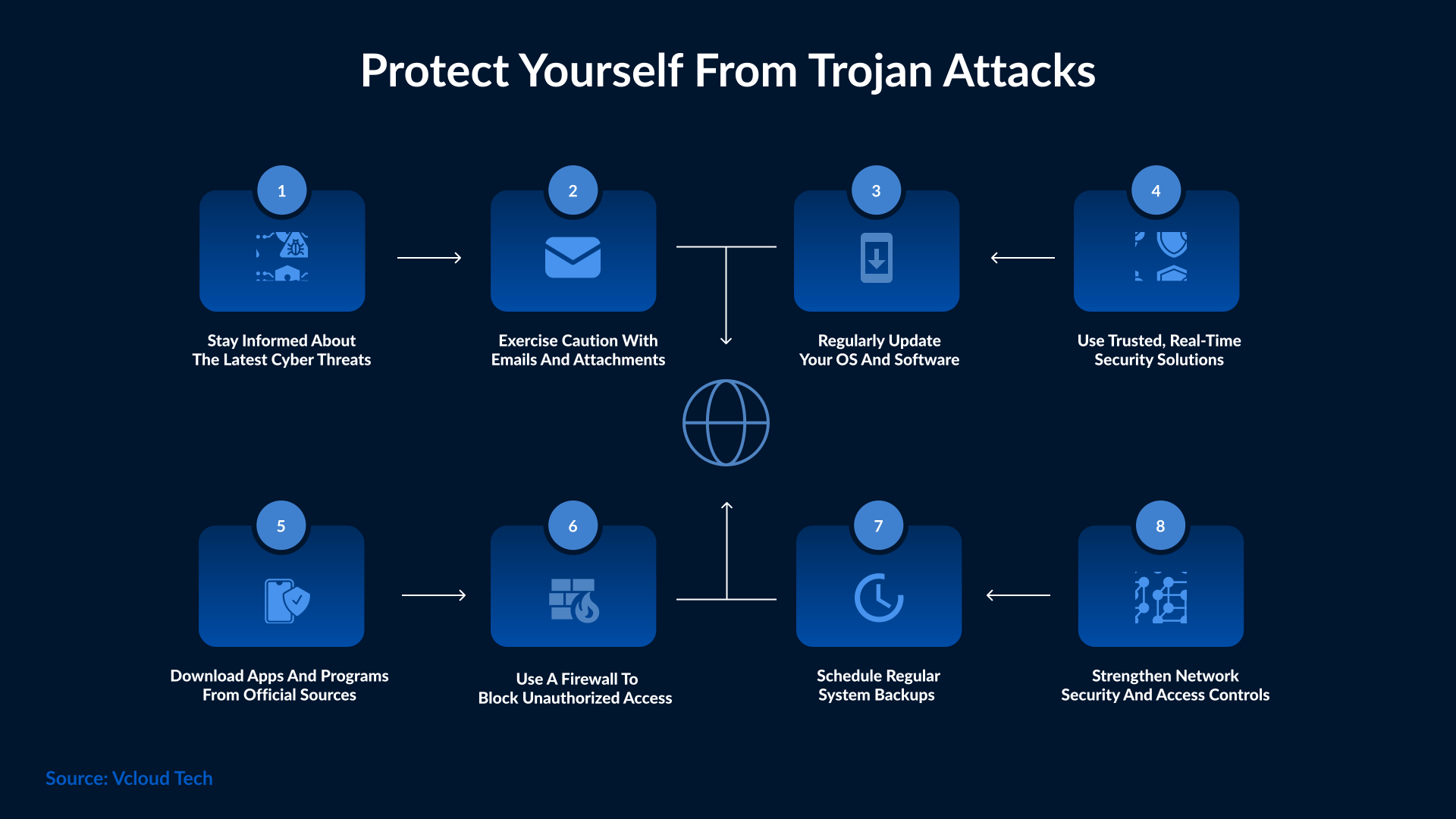
After removing the Trojan and securing the system, you should focus on improving your safety measures. Here are the key steps that help you do so:
- 1. Use a VPN while downloading from file-sharing sites, especially on public Wi-Fi.
- 2. Avoid opening suspicious email attachments or IM files.
- 3. Don’t access unsecured websites.
- 4. Download apps and programs from trusted or official sources.
- 5. Review app permissions before installing any app/software.
These habits, along with regular software updates and layered security tools, are key to strong Trojan virus protection.
Emerging Trojan Threats to Watch Out For
Modern Trojans are far more advanced than those seen 15 years ago. Today, attackers use smarter and stealthier versions of Trojans in the system process, which can easily evade traditional antivirus tools. Fileless Trojans, for example, run entirely in memory so that they can’t be detected through normal hard drive scans. Other versions, like Agent Tesla and Emotet, use advanced evasion and data-stealing methods.
Some Trojans are using AI-driven automation to identify weak points in a system or hide within legitimate applications. These advancements make the Trojan virus removal process more difficult. The best ways to protect against a Trojan virus are to apply the latest security patches and use behavior-based protection.
Conclusion
The Trojan horse, with its multifaceted attack vectors and evasive techniques, remains a critical cybersecurity concern for organizations worldwide. To defend effectively, users and organizations must understand how Trojans spread, how they behave once inside a system, and the different types that exist. SafeAeon helps businesses identify Trojan infections and provides tools and techniques to protect infrastructure from Trojans, malware, and other cyber threats.