


Key Takeaways
- Kernel Security Check Failure is the most common Blue Screen of Death (BSOD) error in Windows 10 and 11.
- The error can be fixed by updating or rolling back drivers, running SFC and DISM scans, checking RAM and disk health, and removing malware.
- BSODs can be prevented by updating Windows and drivers, avoiding unnecessary overclocking, and performing regular system maintenance.
Introduction
‘Kernel Security Check failure’ doesn’t sound too familiar to many people, but ‘Blue Screen of Death’ does. There are different types of blue screen of death errors, but Kernel Security Check Failure is one of the most common causes behind it. BSODs are notoriously difficult to recover from, but when they occur due to a Kernel Security Failure error, it leads to a whole other process of diagnosing.
Several factors, such as corrupt system files, outdated or incompatible drivers, malware infections, or faulty hardware, cause this error. We are going to explore the causes and potential solutions for this issue before delving into different methods of fixing it.
What is the Blue Screen of Death (BSOD) Error?
Blue Screen of Death (BSOD) is a critical system error that occurs on Windows OS. When the system comes across an unrecoverable error, it stops the operation and displays a blue screen with an error message. There could be multiple reasons behind BSOD, such as hardware failures, software bugs, malware infections, and driver problems.
The system also generates a ‘dump’ file that contains detailed information about the system’s state at the time of the error. Users can go through this file to diagnose the problem and fix it. These types of errors are extremely critical because they can result in data loss if the system shuts down improperly. It is important to fix these errors right away. BSOD has many types, and Kernel Security Check Failure is one of the types that indicates a system problem. Addressing such errors promptly can prevent data loss or any other damage.
What Causes Kernel Security Check Failure?
This error can occur due to multiple factors; here are some of the common ones:
Outdated Drivers
Drivers act as intermediaries between the OS and hardware components. If drivers are incompatible, outdated, or contain bugs, then they cause the system to malfunction. Then, the kernel steps in and shuts everything down to prevent damage.
Hardware Issues
Incompatible or faulty hardware can cause a ‘Kernel security check failure’ error, especially faulty RAM or a hard drive.
Memory Problems
Issues with RAM (Random Access Memory) can disturb everything. It will result in app crashes to total system failure, causing that error.
Corrupt System Files
Damaged core Windows files (like a bad update, from a crash, or malware) can cause the system to malfunction and result in that error.
Malware Infections
A malicious file or virus can corrupt system files, damage essential components, or change permissions, resulting in kernel failure.
Faulty Windows update
The role of Windows Update is to download and install the latest drivers, features, and more. Sometimes, Windows can install a buggy, corrupt, or incomplete update, which results in a kernel security check failure.
Third-Party Software Conflicts
Be careful while installing third-party software like driver utilities, performance boosters, or game mods, as they can clash with system files or hardware drivers. This especially happens when the software is not fully compatible with recent Windows updates. The conflicts can trigger the kernel security check failure.
Overclocking
Pushing the system’s CPU or GPU beyond its manufacturing limits can heat up the components and increase power consumption as well. It ultimately results in a kernel security check failure.
How to Solve Kernel Security Check Failure
You can fix the Kernel Security Check Failure error using a few proven methods. These solutions work on Windows 10 and 11 and can help stop recurring blue screens.
1. Boot into Safe Mode
Safe Mode starts Windows with minimal drivers and services, helping you isolate the cause. To boot into Safe Mode:
- Hold Shift and click Restart on the Start menu.
- Go to Troubleshoot -> Advanced options -> Startup Settings -> Restart.
- Press 4 or F4 to enable Safe Mode.
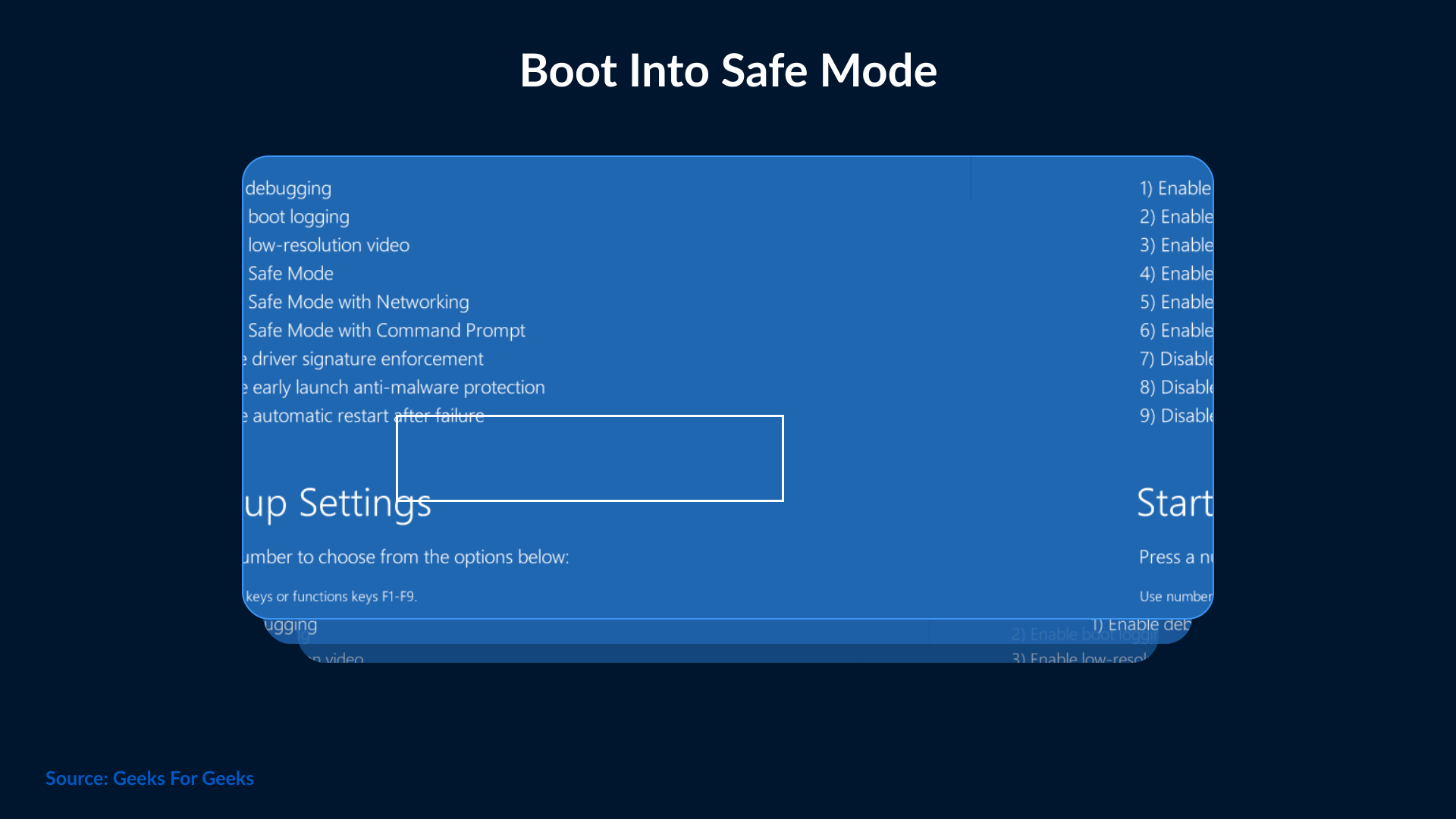
If you don’t see the error in Safe Mode, then it’s probably caused by a driver or software conflict. In some cases, the system may enter a Kernel Security Check Failure boot loop, where the system crashes repeatedly before reaching the desktop. Booting into Safe Mode gets the system out of this loop to make troubleshooting easy for you.
2. Update or Roll Back Drivers
Outdated or incompatible drivers are the most common triggers.
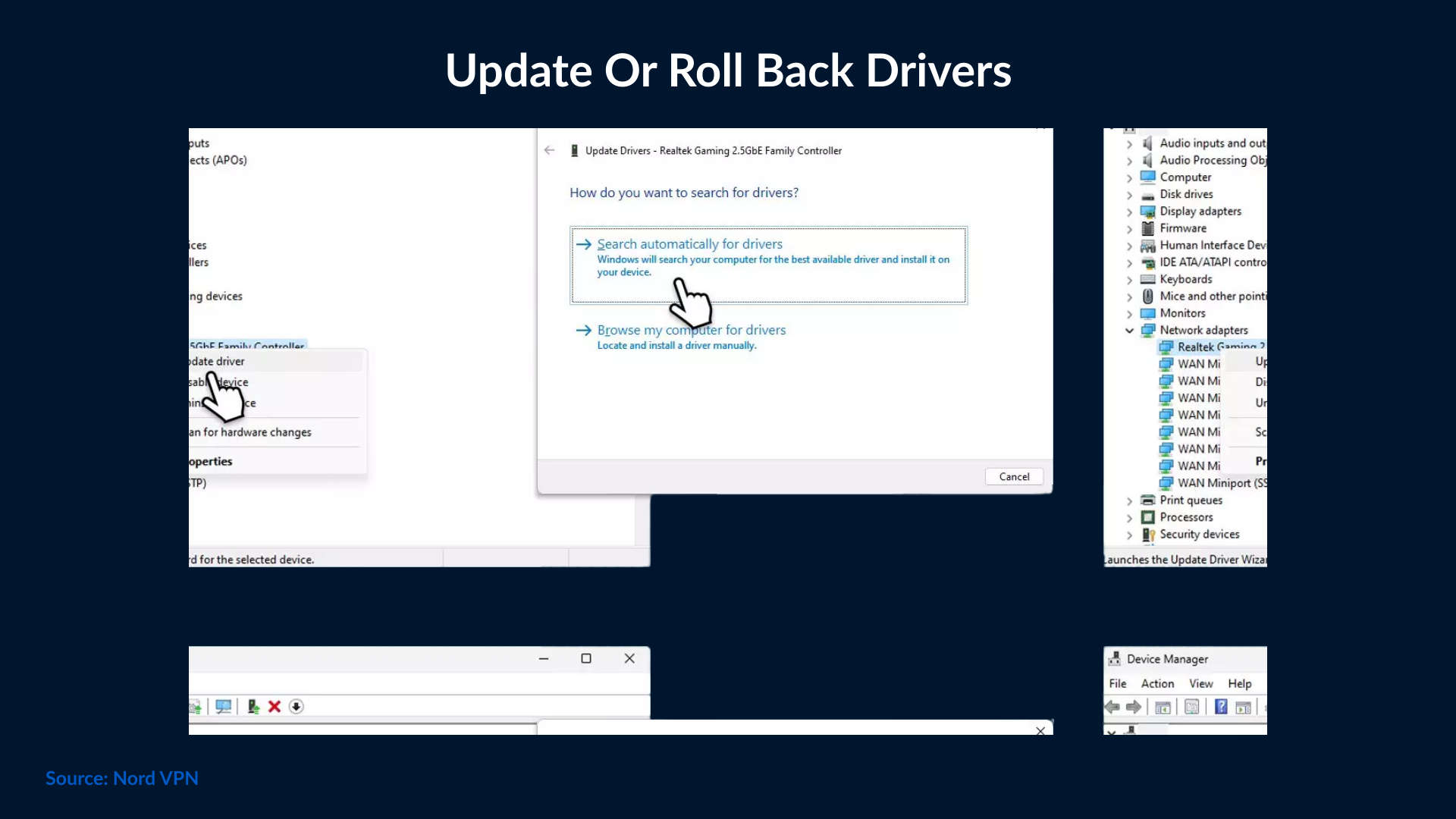
- Open Device Manager (Win + X -> Device Manager).
- Right-click devices like Display adapters or Network adapters, then select Update driver -> Search automatically.
- If the issue started after a driver update, choose Properties -> Driver -> Roll Back Driver.
You can also use official tools like NVIDIA GeForce Experience or AMD Adrenalin for GPU updates.
3. Repair System Files
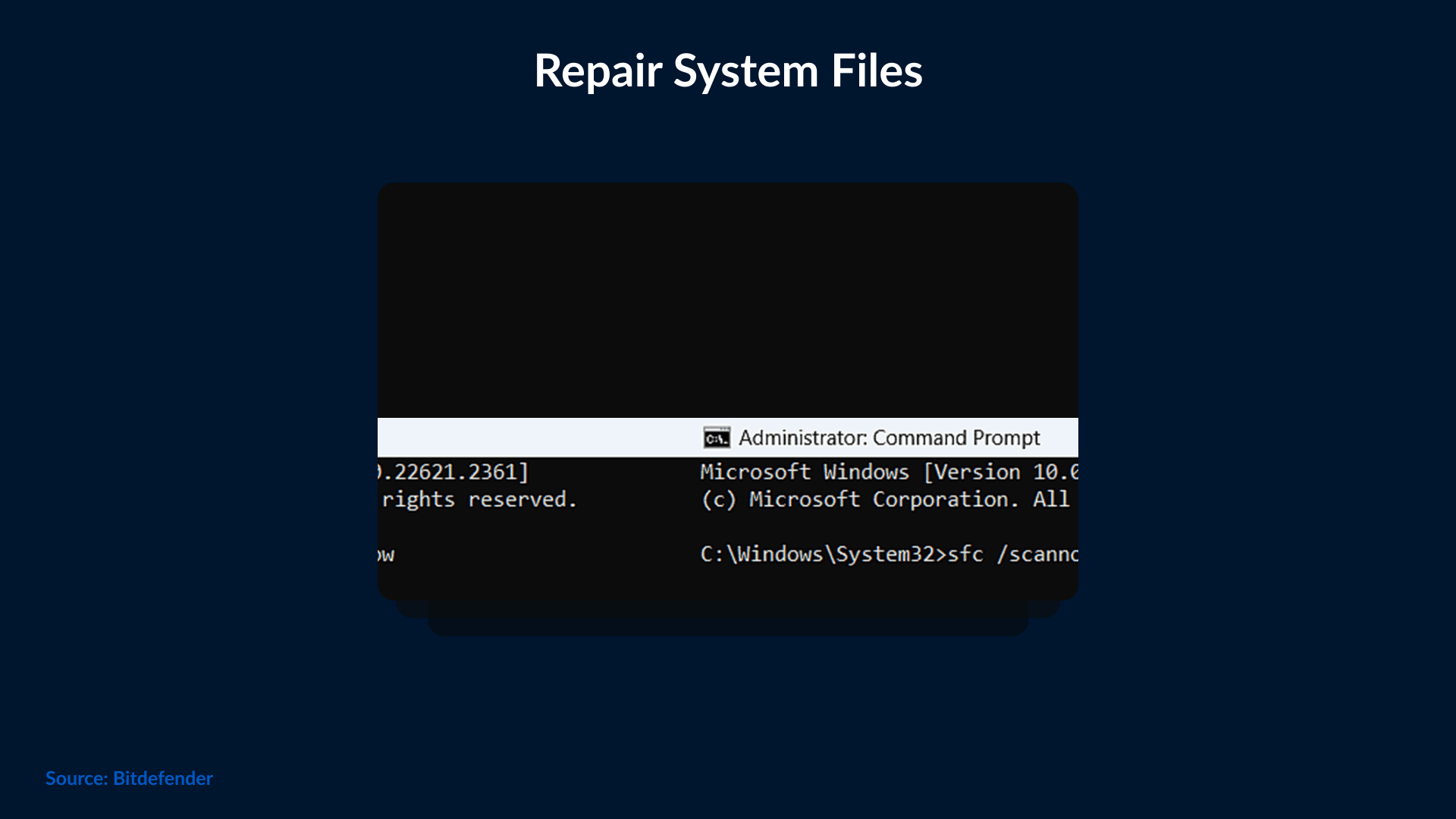
Corrupted Windows files can also trigger this BSOD. These built-in Windows tools repair corrupted or missing system files. In Command Prompt (Admin), run: sfc /scannow DISM /Online /Cleanup-Image /RestoreHealth
Restart after both scans finish.
4. Check Memory and Disk Health
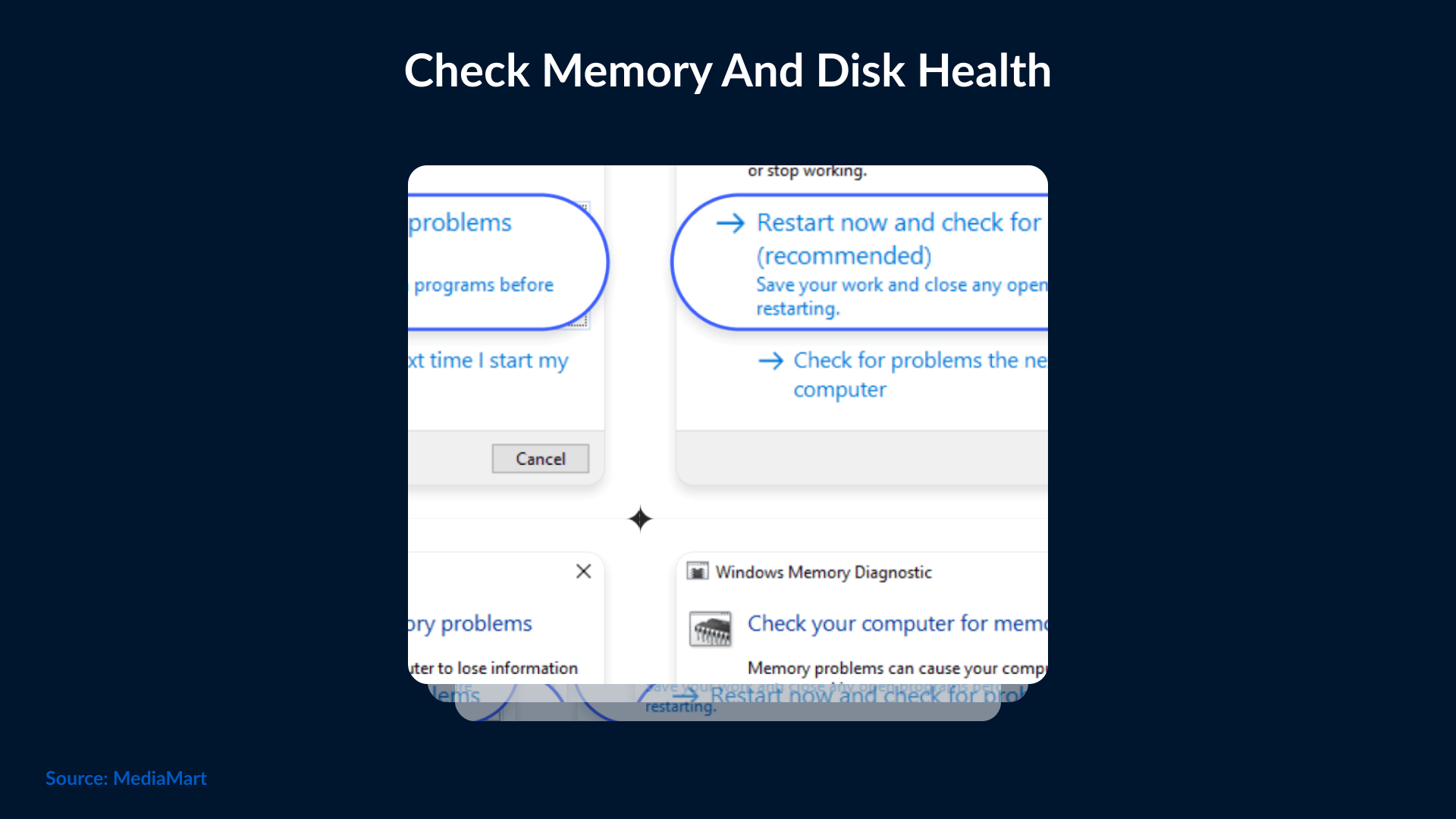
- Memory: Run Windows Memory Diagnostic → “Restart now and check for problems.”
- Disk: Open Command Prompt (Admin) and run: chkdsk /r
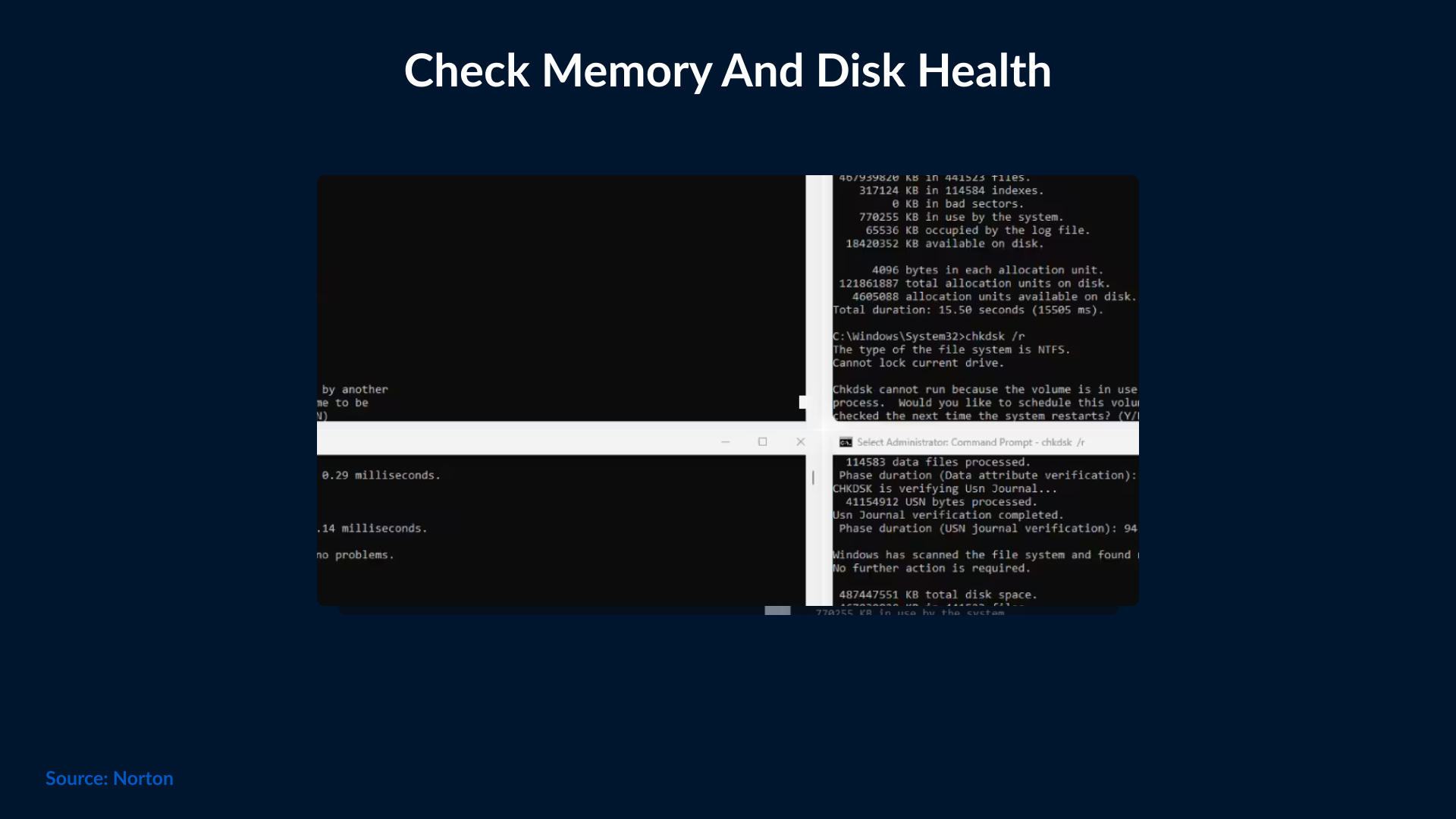
This scans and repairs file system errors and bad sectors.
5. Scan for Malware
Run Windows Security -> Virus & threat protection -> Full scan.
Remove any detected threats before restarting your system.
6. Use System Restore or Reinstall Windows
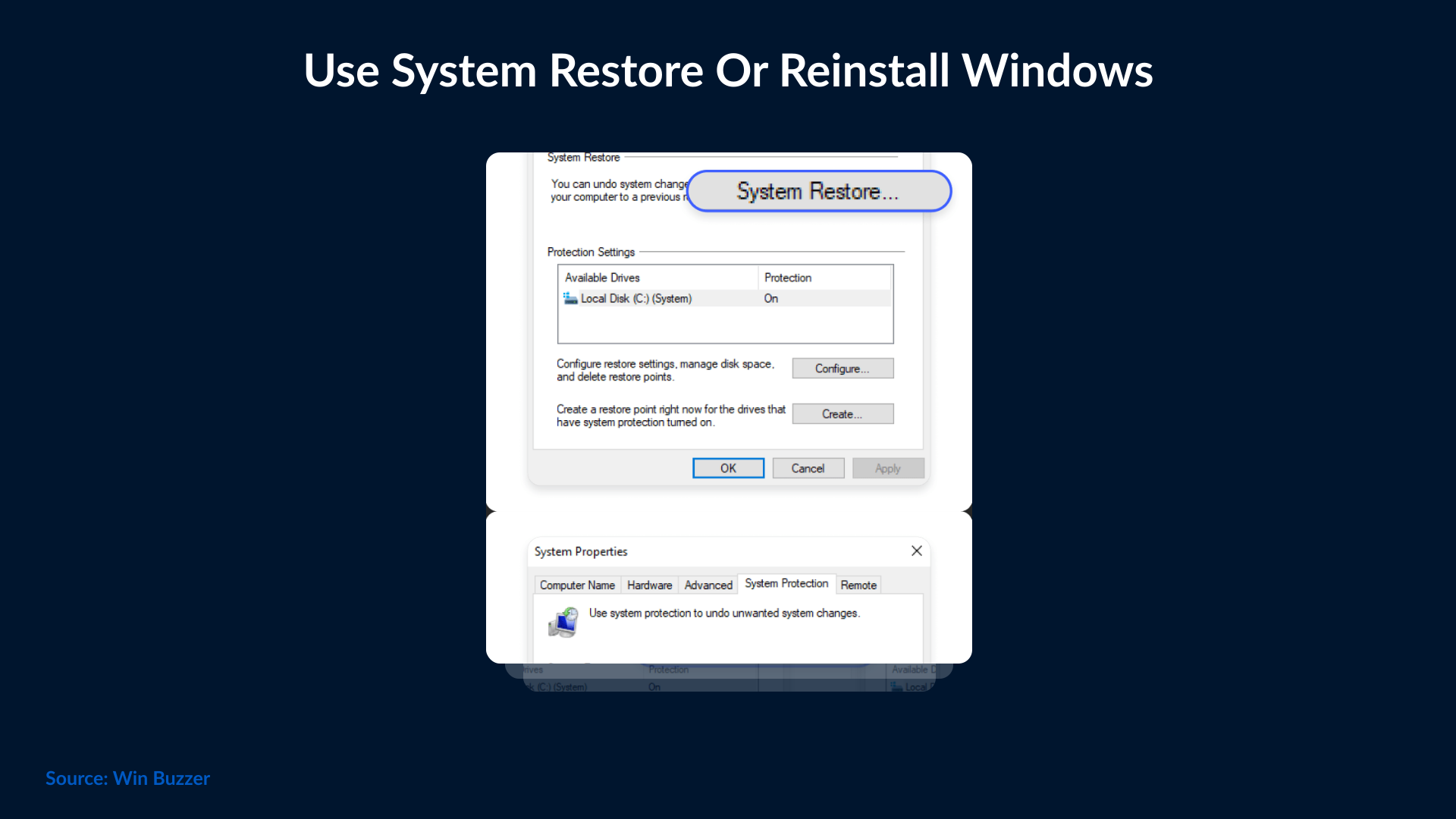
If you still can’t resolve the kernel security check failure, then you will have to restore the system to a previous stable point. If this doesn’t work, then you will have to take a backup of your data and install Windows again.
How to Prevent Kernel Security Check Failure
It’s always better to avoid the kernel security check error rather than troubleshoot it. You can follow these habits to stay ahead of this error.
- Keep Windows and drivers updated: Outdated Windows and drivers cause the maximum system crashes, so make sure to update both regularly to avoid patch vulnerabilities early.
- Run regular system maintenance: Software updates, disk cleanup, and defragmentation of the hard drive help avoid system errors.
- Scan regularly with a trusted antivirus: Install a trusted antivirus to scan your system regularly.
- Avoid unnecessary software installations: Cluttering your system with too many software programs will lead to conflicts. Only install the software you really need.
- Avoid overclocking or BIOS tweaks: Overclocking leads to overheating and instability in the system, so avoid changing the BIOS settings unless necessary.
- Perform regular hardware checks: Check your RAM and hard drive health every few months.
- Back up your data regularly: If your system fails to turn back on normally, then the backup will save you from disaster.
- Avoid changing core system settings: Unless you are completely sure, don’t change anything in system or registry files.


Protecting Data During BSOD Crashes
The biggest concern in kernel security check failure leading to the blue screen of death is loss of data. It can cause severe mental and/or financial troubles if not solved. Fortunately, there are a few steps you can take to prevent data loss.
1. Maintain Windows & drivers: Installing the latest Windows is good; maintaining it is even more important to prevent errors like BSOD. Updating your Windows regularly and all its drivers will help the OS remain in good condition.
2. Create regular backups: You can’t rely on just one hard drive for your precious data. You must use File History, OneDrive, or an external hard drive to back up your files.
3. Use antivirus software: Installing an antivirus will not help fix BSOD, but it’ll help prevent malware that could cause the error.
4. Use file recovery software: In case you accidentally delete important files, you can recover them using file recovery software before they are overwritten.
Conclusion
Kernel Security Check Failure is one of the most frustrating issues arising in Windows computers. In some cases, the system also gets stuck in a Kernel Security Check Failure boot loop, where it crashes repeatedly before reaching the desktop. If we pay attention to basic maintenance like keeping drivers updated, fixing corrupt files, and monitoring hardware health, the error can be prevented. The biggest concern in this error is the loss of data because once lost, it can’t be retrieved unless a backup was taken. Therefore, this issue must be handled by experts who know how to get the system back up normally, with all the data intact. SafeAeon has an experienced team that can quickly diagnose and fix Kernel Security Check Failure issues, ensuring your system runs reliably and securely.