


Key Takeaways
- Even 1% packet loss can reduce the performance of a real-time application by 10% or more, which impacts video calls, gaming, and streaming.
- Most gamers blame packet loss as the leading cause of lag during online play instead of slow internet speed.
- The majority of packet loss issues come from fixable causes like outdated hardware, Wi-Fi interference, or router misconfigurations.
Introduction
Having a dependable internet connection is necessary in today's connected world. However, what can one do if they experience the following: video call freezing, online game lagging, and file transfers stalling? The probable cause is packet loss, which everyone must learn to enjoy uninterrupted, high-performance internet.
What Is Packet Loss?
Packet loss means that data packets sent through a network couldn’t reach their destination. Data is sent across a network in indivisible small chunks known as packets. Every time you send an email, load a web page, or join a video call, packets are sent.
Packet loss occurs when some packets are lost, delayed, or dropped while in transmission.
Some levels of packet loss can ruin important Zoom calls, create lag in gaming experiences, and interrupt downloaded files. Hence, it’s important to understand the solutions for this problem to ensure a stable and secure internet.
What Causes Packet Loss?
Packet loss usually happens due to network overload, faulty equipment, or interference. Below are the most common causes:
| Cause | Description | Example |
|---|---|---|
| Network Congestion | Too many users/devices overwhelm routers & switches | Multiple Netflix streams + gaming + video calls |
| Faulty Hardware | Damaged cables, overheating routers/switches | Old Ethernet cable causing drops |
| Wireless Interference | Other signals disrupt Wi-Fi | Microwave running near router |
| Misconfigurations | Wrong QoS, MTU mismatch | Router firmware mis-set |
| ISP Issues | External outages or congestion | ISP hardware failure |
Why It’s Critical to Fix Packet Loss
Packet loss is almost undetectable in most internet activities. In real-time activities like gaming, VoIP applications, and live streaming, however, it can be unforgiving. Hence, to prevent packet loss, one must learn to play with the options. Based on thousandeyes research, even 1% loss may label the connection as unreliable and slow.
How to Detect Packet Loss
Before learning about ways to fix packet loss, you should check if the problem is really related to packet loss. There could be several reasons behind the lag in online content. Here are three effective ways to detect packet loss:
1. Run a Ping Test: A ping test sends small packets to a target server and checks whether they come back. If not, that's an early sign.
For example, if one has noticed video call lags and pings a steady address like that of a well-known website, a minimal packet loss of 5% confirms it's part of the issue.
2. Try using Traceroute: The way a traceroute describes the route that your data is taking through the network can help determine fine-grained packet loss in your home network, by your ISP, or across the Internet.
In real terminology, if packet loss occurs after passing through your router, that is a local issue. However, if it happens after passing through your ISP, it is probably an external infrastructure problem.
3. Monitor Your Network with Tools: Shows advanced toolsets like Netdata, Wireshark, or PingPlotter used for continued, visualized tracking of packet delivery and loss. Handy if you are operating a commercial network for troubleshooting packet loss or want a more in-depth understanding before deciding to fix packet loss effectively.
How to Fix Packet Loss (Step-by-Step)
Once you've identified the cause of the issue, it’s time to fix it in a proper way. Here’s a quick overview of the most common fixes. These are also explained in detail below:
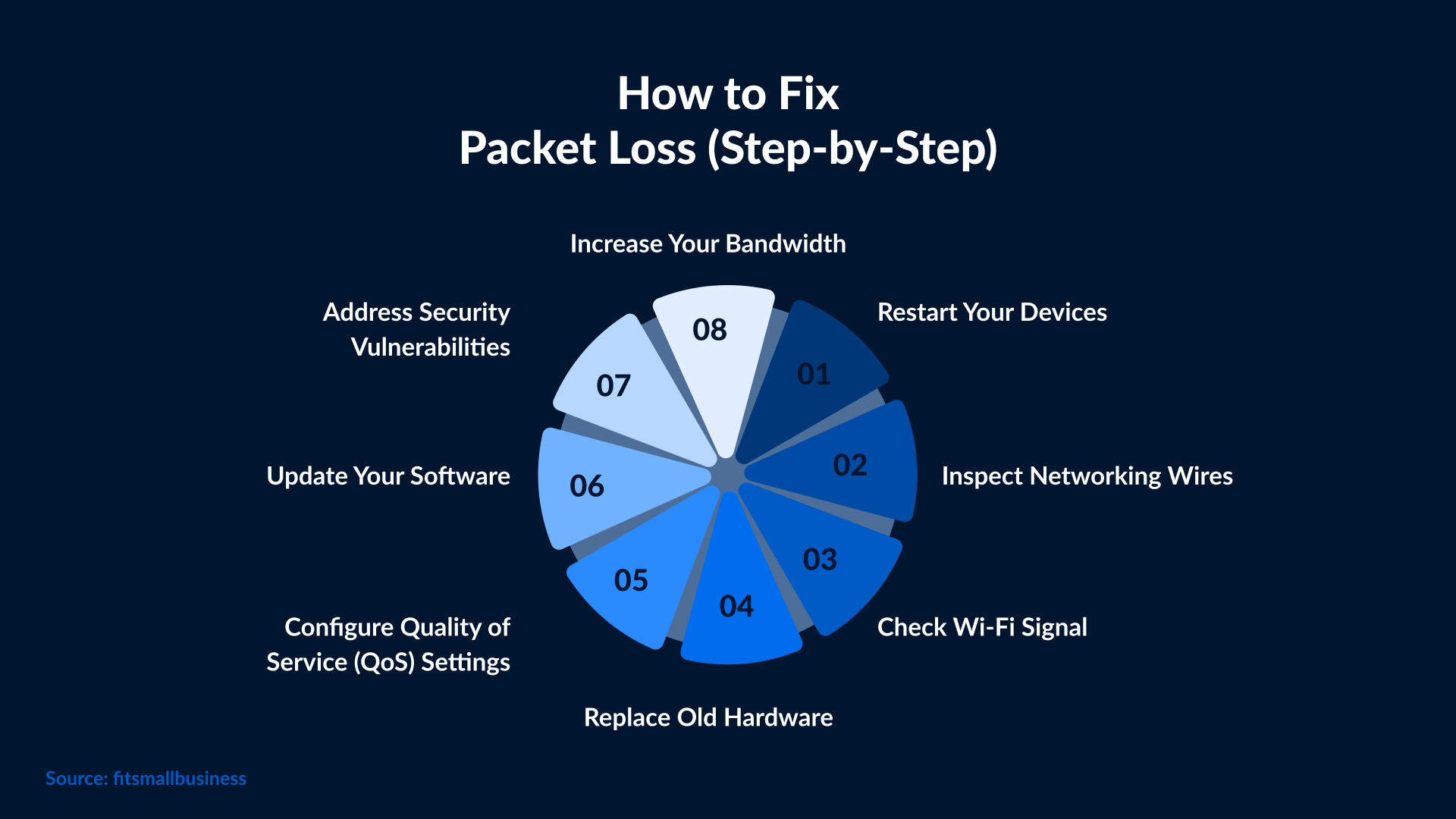
1. Restarting and Inspecting Hardware
The first easy approach to fix packet loss is to inspect your own physical network.
- Restart the router and modem.
- Test the cables for damage.
- Replace old or faulty routers and switches.
- Ensure that your devices are not overheating.
Example: Changing a faulty Ethernet cable has solved packet loss for many users.
2. Make Your Wi-Fi Environment Better
One of the main causes of packet loss is wireless interference, especially in big cities.
- Place the router in a central location and at an elevation.
- Keep away from microwaves or cordless phones.
- Use the 5 GHz frequency band: less interference than 2.4 GHz.
- Consider upgrading to a mesh Wi-Fi system if you have weak coverage.
The problem of packet loss can be fixed with better hardware and its correct placement.
3. Minimize Bandwidth-Consuming Activities
Another way to reduce packet loss is to decrease congestion.
- Limit the number of devices online while there is high traffic.
- Pause large downloads or updates when playing games or streaming.
- Implement Quality of Service settings that prioritize important traffic such as voice or gaming.
4. Firmware and Driver Update
Outdated software causes routing mishaps and packet drops. Regular upgrades constitute an important part of whatever you will do to fix packet loss:
- Updating the router firmware
- Updating the network adapter drivers on your computer
- Resetting the router settings to default in case of unstable custom configurations
5. Scanning for Malware and Securing the Network
Viruses and malware can wreak havoc on network behavior. You can run a deep scan of your system to determine if the packet loss is due to malware infection.
- Make sure your antivirus is updated.
- Change the passwords of your Wi-Fi so that no one can access it without you knowing it.
- Disable any unnecessary network services that could be compromised.

6. Contact Your ISP
When all solutions fail, you should reach out to your internet service provider to fix the issue of packet loss.
- Ask whether they are facing any outages.
- Ask for a line check or a route trace.
- Ask about infrastructure upgrades or alternative routes.
Advanced Fixes for Persistent Packet Loss
If simple troubleshooting does not fix the packet loss, you can try the advanced recommendations mentioned. They are especially helpful in professional or semi-professional environments, e.g., gaming, VoIP, or business networks, where such glitches can inflict real damage.
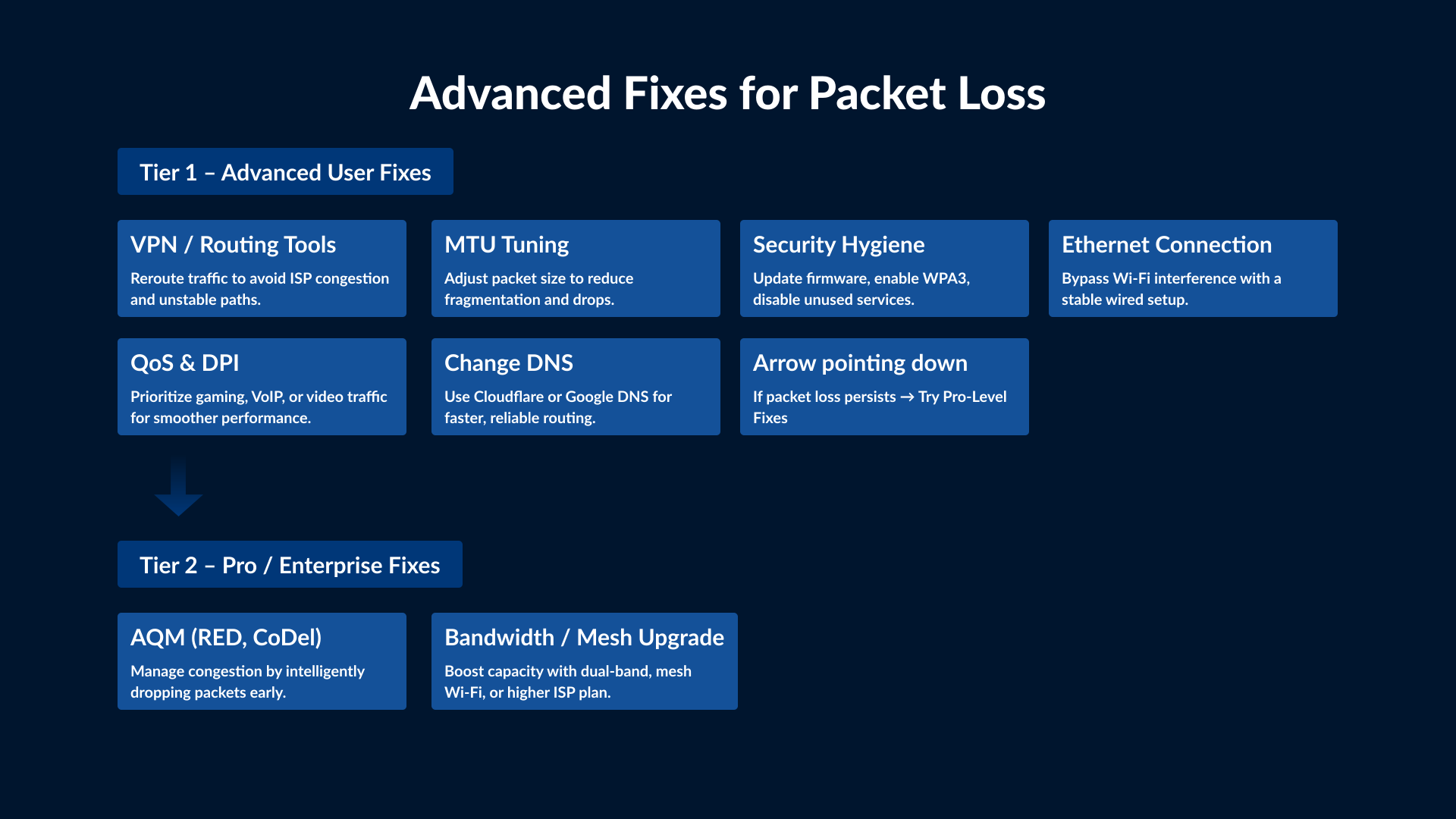
1. Make Use of a VPN or a Routing Optimization Tool
Sometimes your ISP uses inefficient routing or experiences network congestion, which can result in packet loss. VPNs or selected gaming tools like ExitLag or NoPing may reroute your data through optimized paths to reduce packet loss and latency.
These tools are very effective for gamers connecting to international servers or any user whose ISP path is erratic. These are not permanent fixes, yet they provide a significant improvement in connection stability.
2. Tweak Your MTU (Maximum Transmission Unit)
If your MTU settings are wrong, data packets can arrive at their destination fragmented or dropped altogether. Find out the MTU size best suited for your system and configure your router accordingly.
For Windows, the MTU can be tested using command-line utilities by pinging with increasingly smaller packet sizes until a point is reached where fragmentation takes place. Once the right size is established, it should be set in either the router or network adapter to minimize the packet loss.
This sort of fine-tuning is most beneficial when your network is exhibiting strange packet events or connection drop failures while carrying out bandwidth-intensive tasks.
3. Set Up QoS and DPI on Routers
QoS values enable you to place priority on certain classes of traffic, say video calls, gaming, or VoIP, ensuring first delivery of the most critical data during periods of congestion. Some advanced routers could integrate Deep Packet Inspection (DPI), allowing more intelligent traffic control based on real-time assessment.
Activating QoS and DPI (provided your hardware supports it) will help to reduce packet loss substantially by optimizing how competing traffic is handled in your network.
4. Upgrade Bandwidth/Equipment
Too many users accessing the internet simultaneously can significantly reduce the speed. Ask your ISP if an upgrade in bandwidth could fix the congestion-related packet loss.
You can also consider using high-throughput modems or routers. They will handle the data better, minimizing packet loss during peak times.
5. Hunt Down an Active Network Management Tool
Active Queue Management (AQM) techniques such as Random Early Detection (RED) or Controlled Delay (CoDel) are meant for advanced users and companies. These tools can help prevent packet loss by monitoring traffic congestion and intelligently dropping some packets early.
These tools are built into enterprise-grade OEM routers or custom firmware setups and are ideal for organizations with a high demand for a stable and secure network.
6. Strong Security Hygiene
Packet loss can also occur in circumstances where the network has been attacked. Keep all pieces of firmware, including that of routers, modems, and firewalls, up to date. Ensure that your Wi-Fi is secured using strong passwords and encryption standards like WPA3.
Finally, remember to turn off services you do not require and guest networks. These can give attackers access to your network. Running malware and spyware scans through a network helps ensure that no backdoor applications are consuming bandwidth and masking legitimate traffic.
7. Use Ethernet Whenever Possible
Wi-Fi is so easy, but it may not promise reliability in an environment with high chances of congestion or interference. Installing a Cat 6 Ethernet cable can lead to a significant reduction in packet loss for people living in urban areas or households with a multitude of devices.
Among the gamers, streamers, and remote workers in India, a wired connection often brings more stable results, especially in areas where the network keeps fluctuating.
8. Migrate to Dual Band or Mesh Wi-Fi Systems
Most older routers in Indian households operate on 2.4 GHz, which is prone to interference. A dual-band router that supports 5 GHz or a mesh system will fix network-related problems in large homes.
Changing your DNS settings to Cloudflare or Google DNS. Many internet users in India experienced higher speeds with a stable connection after switching to these DNS.
Conclusion
Packet loss could ruin an excellent experience on your internet, but it can all be fixed if you follow the right steps. From causes of packet loss to useful diagnostic tools and techniques, this guide provides everything you need to get your network performance back up and running.
Aside from gaming, remote working, or managing your company's infrastructure, knowing how to fix packet loss will make you a master of your very own network. Start with basic troubleshooting; if it's okay, upgrade hardware. If the problem is outside the premises, then connect with your ISP for a lasting resolution.