


Key Takeaways
- Public DNS resolvers are used by nearly 60% globally, indicating a strong shift away from ISP-default DNS.
- In October 2023, a Cloudflare outage disrupted its 1.1.1.1 service, causing up to 15% of global DNS lookups to fail for several hours.
- Good preventive habits like regular scans, keeping systems updated, and enabling encrypted DNS can reduce the chances of DNS failures.
Introduction
Does it happen to you that you’re trying to open a website and see the dreaded message “DNS server not responding”? You check your internet connection, which is working, but your browser is somehow unable to translate the domain name into an IP address. As a result, no website is loading.
In such a case, one of the fundamental functions of the internet, domain name resolution, seems to be problematic. Domain Name System (DNS) is like the internet’s phonebook, converting website names into IP addresses that computers understand. When your system can’t reach the DNS server or the server fails to respond, it indicates the failure of that conversion. As a result, you may see a ‘cannot reach this page’ message on your screen.
We will go through the reasons behind this error and ways to fix it, but let’s begin with understanding the DNS server.
What is a DNS Server?
A DNS (Domain Name System) server is a critical component for the smooth functioning of the Internet. DNS translates human-readable domain names, such as example.com, into numerical IP addresses that computers understand. Your computer will connect and load the correct website. Without DNS servers, accessing the web would be next to impossible, as you would have to memorize long strings of numbers to visit any website.
When you enter a web address in a web browser, the DNS server receives the request, looks up the domain name, and responds with the correct IP address. This allows your device to establish a connection to the website’s server.
DNS servers are also responsible for improving performance and reliability through features like:
- Caching: storing Recent lookups so that the site loads faster the next time.
- Redundancy: Using multiple servers to stay online if one fails.
- Security: Blocking malicious redirects and supporting encrypted DNS for privacy.
In short, DNS servers are the backbone of internet navigation, ensuring you reach the right websites quickly, safely, and without needing to remember complex IP addresses.
How DNS Resolution Works
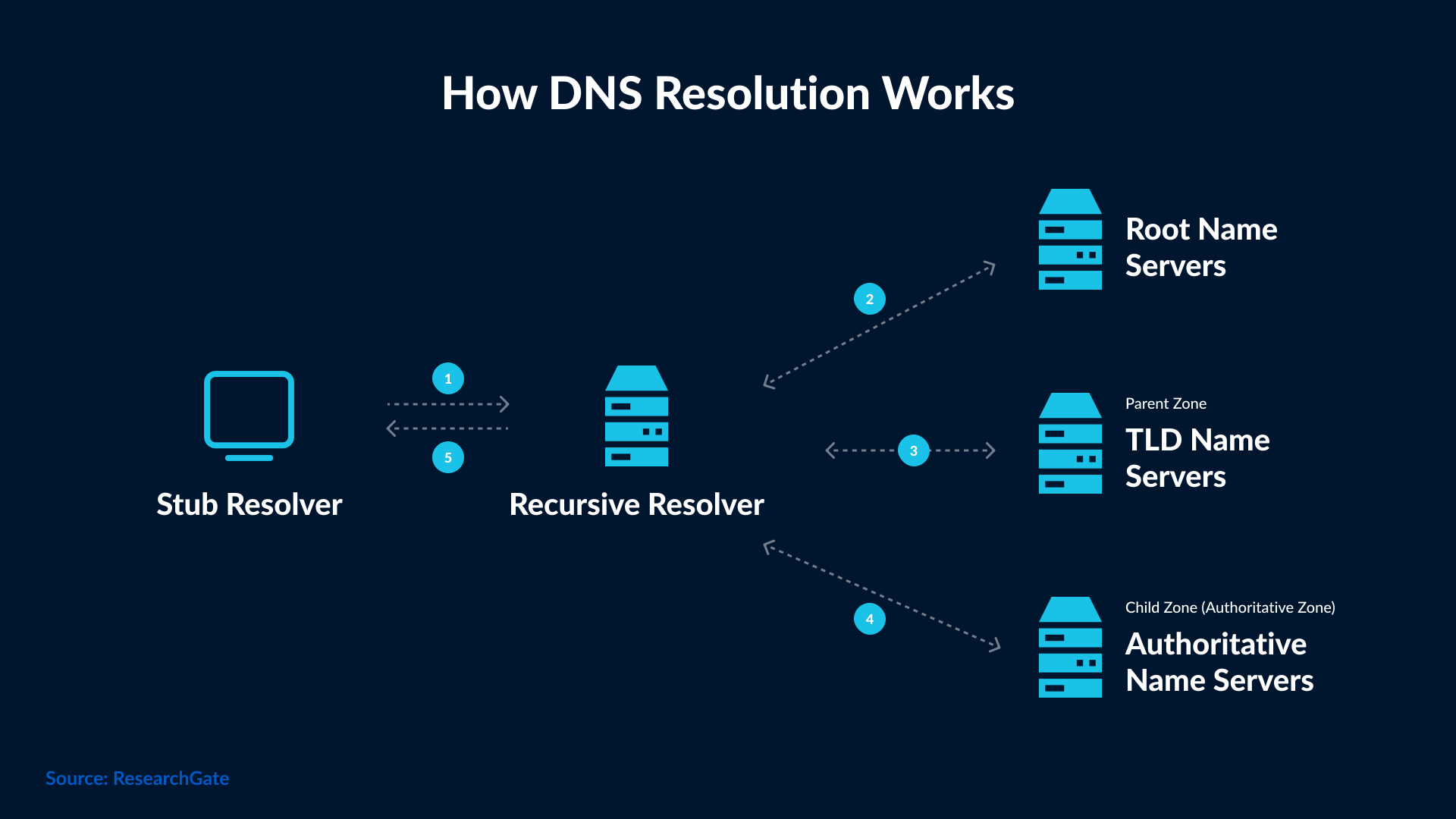
When you type a domain name, your computer asks a DNS resolver to find its IP address. It happens in milliseconds.
- Stub Resolver (your device) sends the query.
- Recursive Resolver checks if it already knows the answer (cached).
- If not, it asks the Root Name Server for directions.
- Root points it to the right TLD Name Server (e.g., .com, .org).
- TLD directs it to the Authoritative Name Server, which holds the domain’s actual record.
- The resolver returns the IP address to your device so the site loads.
Types of DNS Servers
There are 4 key types of DNS servers, and knowing each type will help diagnose the issues later.
| DNS Server Type | Purpose / Role |
|---|---|
| Recursive Resolver | The “middleman” your device first talks to. It fetches IPs on your behalf. |
| Root Nameserver | The top level in the DNS hierarchy; directs to TLD servers. |
| TLD Nameserver | Responsible for a top-level domain (like .com, .org) and directs traffic to authoritative servers. |
| Authoritative Nameserver | Holds the DNS records (A, AAAA, CNAME, MX, etc.) for a domain and gives the final answer. |
These servers operate in the background, and you won’t interact with root or authoritative servers. Instead, your device connects to a resolver, which your ISP provides. You can also connect to public DNS providers, such as Google, Cloudflare, OpenDNS, or Quad9.
ISP DNS Vs Public DNS
Your resolver is run by your ISP by default. It usually works great, but at times, it can be slower and less reliable. Public DNS, on the other hand, often provides:
- Faster and more consistent,
- Protection against certain attacks,
- Support for encrypted DNS to improve privacy.
In many cases, switching to a public DNS can also fix the ‘DNS server not responding’ error.
What Does “DNS Server Not Responding” Mean?
The “DNS server not responding” error means your device cannot reach the DNS server to translate a domain name into its matching IP address. As a result, websites fail to load even if your internet connection is working. It usually indicates a problem with your device, network settings, or the DNS server itself.
- DNS server not responding
- This site can’t be reached
- Server DNS address could not be found.
They all mean the same thing: your DNS server isn’t working. That’s why troubleshooting is necessary to identify the problem, if it is on your device, network or the DNS server itself.
Common Causes of the DNS Server Error
The ‘DNS server not responding’ error can originate from many sources. Here are the most common ones:
1. ISP Issues: Overloading, offline, or misconfigured DNS servers can prevent your requests from resolving. This usually occurs with ISP-provided DNS servers.
2. Router or Modem Problems: Faulty or outdated router firmware, incorrect settings, or hardware glitches can block DNS queries.
3. Network Misconfigurations: If your device has the wrong IP address or DNS settings, it won’t be able to connect to the correct DNS server.
4. Corrupted or Outdated DNS Cache: An incorrect or expired DNS record can cause repeated connection failures.
5. Firewall or Antivirus Conflicts: At times, antivirus or firewall software blocks DNS requests, interpreting them as suspicious activity.
6. VPN or Proxy Interference: If a VPN or proxy is misconfigured, then it may route DNS requests incorrectly, causing failures.
7. Malware or DNS Hijacking: Malicious software can change your DNS settings or redirect traffic to fake servers, preventing you from accessing legitimate sites.
8. Outdated Network Drivers: Old or corrupted network adapter drivers can also trigger DNS errors, particularly on Windows systems.
How to Fix DNS Server Not Responding
As frustrating as this error is, fixing it can be simple. We have covered all the possible ways to fix the error, starting from quick fixes and moving to advanced steps. Make sure you follow the steps in the same order.
Quick Fixes
You can follow these steps to quickly solve the error:
- Restart your router and device.
- Switch to a different web browser.
- Disable extra network adapters to avoid conflicts.
Network Settings Adjustments
If quick fixes don’t help, you should check your network configuration:
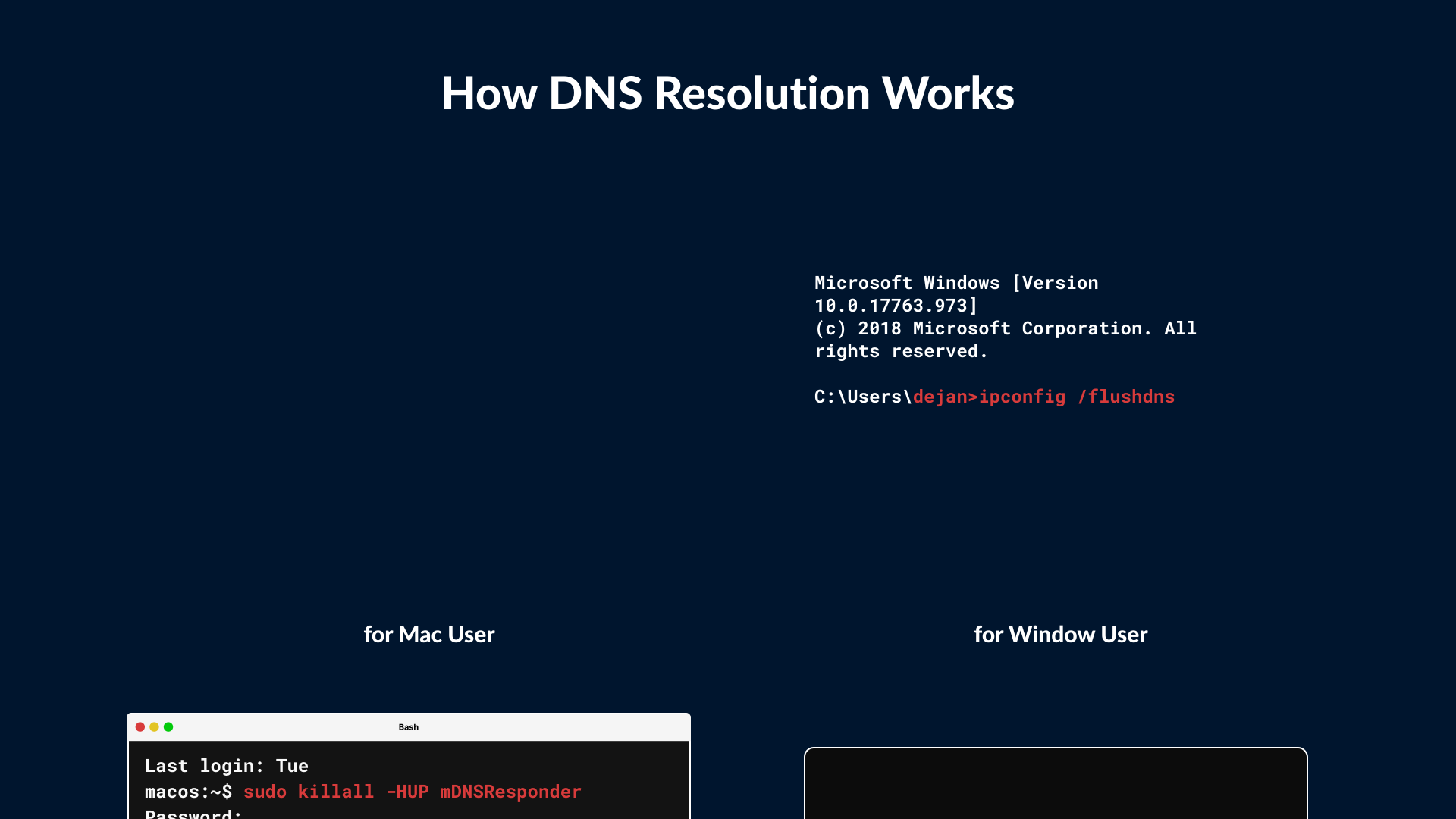
- Flush DNS cache to clear corrupted records.
- a. For Windows, enter this command in the command prompt: ‘ipconfig/flushdns’.
- b. For macOS, add this in the terminal.app: ‘sudo killall -HUP mDNSResponder’.
- Try to reset TCP/IP and Winsock. This will refresh networking protocols (netsh int ip reset).
- You can also try changing the DNS servers. Switch to Google (8.8.8.8), Cloudflare (1.1.1.1), or OpenDNS.
System-Level Fixes
So, you have tried quick fixes and network settings adjustments, but the problem still exists. In that case, you need to analyze your operating system.
- Check if the network drivers are updated. If not, update them right away.
- Temporarily disable the installed antivirus or firewall software because they block DNS queries.
- Start your computer in Safe Mode with Networking. This will help you identify if any third-party app is interfering with the network.
Device-Specific Solutions
Different systems may require different steps:
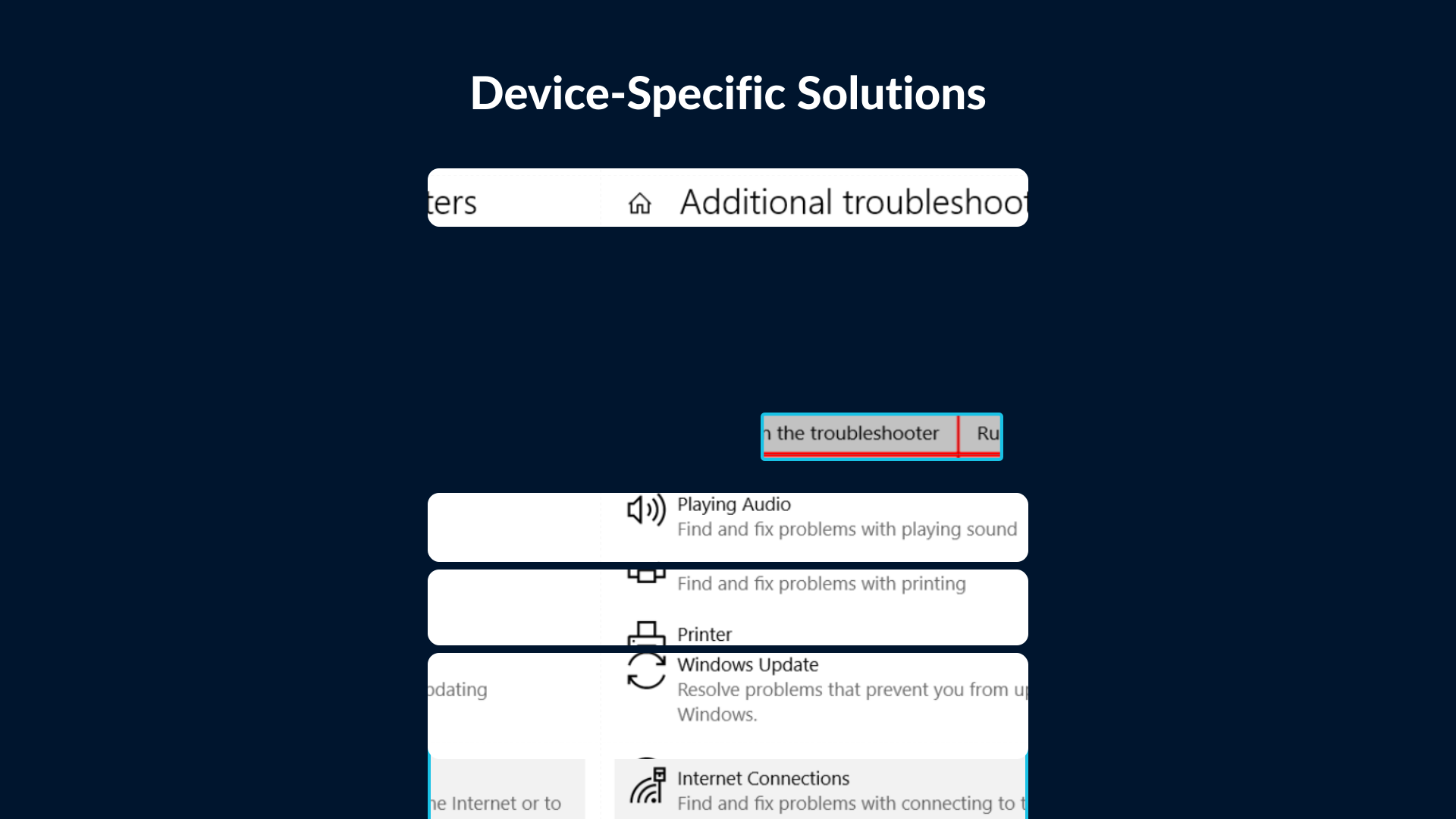
- Windows: Use the built-in Network Troubleshooter.
- macOS: Renew DHCP lease via ‘System Settings’ -> ‘Network’.
- Router: Log into the admin panel of your router and update DNS manually.
Advanced Fixes
If none of the solutions work, then you have no other option but to try these steps:
- Check the hosts file and remove any incorrect entries that override DNS.
- Scan your system for malware programs, as they can alter DNS settings.
- If the issue appears in all devices, then the fault may be with your provider’s DNS servers, so contact your ISP for a solution.
That was all about fixing the ‘DNS server not responding’ error. But wouldn’t it be better if you knew how to prevent DNS errors from occurring in the first place? Here is how you can do so.
How to Prevent DNS Issues
DNS errors can be prevented by following a few good habits, which include:
- Using a reliable DNS provider: You can use trusted public DNS services like Google, Cloudflare, or Quad9 for better speed, security, and uptime.
- Keeping systems updated: Regularly update your operating system, router firmware, and network drivers to avoid compatibility issues.
- Clearing DNS cache: You can flush cached DNS records occasionally to prevent conflicts with outdated entries.
- Securing against malware: Use reliable antivirus and anti-malware tools to prevent DNS hijacking or malicious redirects.
- Enabling encrypted DNS: Turn on ‘DNS over HTTPS (DoH)’ or ‘DNS over TLS (DoT)’ for privacy and protection against tampering.
When to Contact Your ISP
Most DNS issues can be fixed on your end, but not always. Contact your ISP if:
- All the devices on your network are affected, including phones, tablets, and laptops.
- Switching to public DNS doesn’t fix the error.
- The issue keeps coming back despite troubleshooting.
- There are regional DNS server outages that only your provider can resolve.
Large-scale DNS failures aren’t limited to ISPs. In October 2023, Cloudflare’s 1.1.1.1 service experienced an outage that disrupted about 15% of global DNS queries for several hours. While rare, incidents like this show that sometimes, the problem lies with your ISP or even the DNS provider itself.
When you contact your ISP in these cases, they can escalate and resolve the issue more quickly.
Conclusion
DNS servers are what make everyday online interactions possible, and when they stop responding, everything comes to a standstill. While you can fix the most common causes yourself, there are certain scenarios where you may need expert assistance. If you are experiencing DNS issues, especially the ‘DNS server not responding’ error, SafeAeon can help diagnose and resolve them. In the meantime, focus on good practices to prevent it from happening again. If the error appears again, don’t panic. Follow the steps outlined in the guide and you’ll be back online in no time.